A members only area in WordPress is a group of pages that only people with an account can open, while everyone else is sent to the login page or reads a short message. For clients, partners or staff you usually do not need a full membership plugin: create an account for each person, put the reserved pages behind a login rule and give members an obvious way to log in.
Below you will find when a membership plugin is worth it and when it is not, what WordPress can do on its own, and a complete setup you can build in an afternoon with free tools.
Do you need a membership plugin?
Membership plugins are built to sell access. They handle payment gateways, membership levels, renewals, expiry dates, sign-up forms and member emails. If you charge for content, that is exactly what you want.
Many businesses need something smaller: a reserved area for people they already know. A manufacturer with technical sheets for resellers, an association with minutes for its members, a studio with project pages for clients, a company with manuals for staff. Nobody pays online, you decide who gets an account, and the area has a handful of pages.
| You need | A reserved area is enough | A membership plugin makes sense |
|---|---|---|
| Who gets in | People you add yourself, or who ask you | Anyone who signs up and pays |
| Payments | None, or invoiced outside the site | Online, one-off or recurring |
| Levels | One group, or a few roles | Several plans with different prices |
| Expiry | You remove the account when needed | Automatic, tied to payments |
| Setup | Accounts, pages and one rule | Also payment gateways, levels and member emails |
If you are in the left column, keep reading.
Can WordPress do it on its own?
Partly. Core WordPress has two ways to hide a page, set in the page's visibility options:
- Private: only users allowed to read private content can open it, and by default those are Administrators and Editors (see Roles and Capabilities). Giving your clients the Editor role so they can read it would also let them change your site, so it is not a real option.
- Password protected: visitors see the title and a password box. It is quick, but everyone shares one password, it is remembered by the browser for 10 days, and you cannot remove one person without changing the password for all. It is fine for one page shown briefly, not for an area people come back to.
What WordPress does well is accounts. Each member can have their own login, and you can switch it off for one person at any time. So the practical recipe is: WordPress accounts for the people, a plugin rule for the pages.
Plan the area before you build it
Ten minutes of planning saves an hour of fixing. Answer three questions:
- Who gets in? One group (all clients) or several (resellers and distributors, staff and clients). One group needs only login status. Several groups need a role each.
- What is inside? List the pages. A tidy structure is one parent page, for example Members or Customer area, with the reserved pages as its children, so the addresses read
/members/manuals/and so on. - How do people get an account? Either you create each account, or visitors register themselves. For a business area, creating accounts yourself is usually better: nobody gets in by accident.
If visitors should register themselves, WordPress has a switch for that in Settings > General: tick Anyone can register and set New User Default Role to Subscriber. Leave it unticked if you add members yourself.
Build a members only area step by step
This setup uses the free version of Content Gate, which applies 2 rules by login status with no time limit. That is enough for a members area with one group.
1. Create the member accounts
- Go to Users > Add User.
- Fill in username and email, and choose Subscriber in Role. A Subscriber can only manage their own profile in the admin area.
- Tick Send User Notification so the person receives an email about their account, then click Add User.
2. Create the pages and note their IDs
Publish the reserved pages as normal public pages. Then open each one for editing and note the number after post= in the address bar: that is its ID.
3. Write the rule
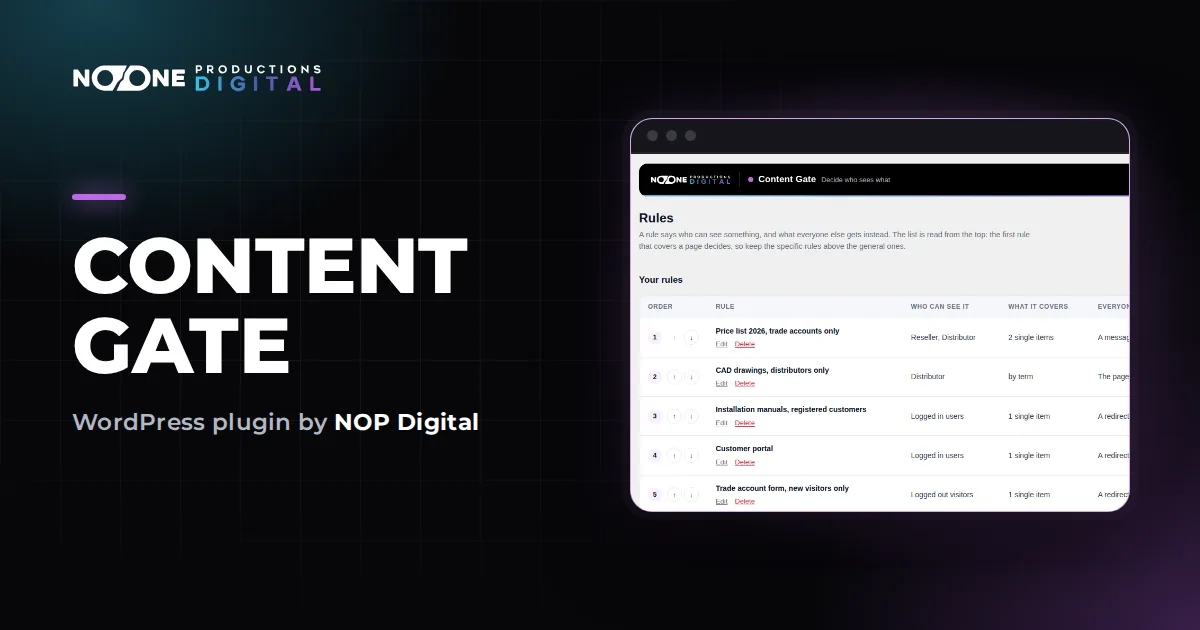
- Go to Content Gate > Rules and click Write the first rule.
- 1 Name it: for example Members area.
- 2 Who can see it: Anyone with an account.
- 3 What it covers: in Single items, by ID, type the IDs separated by commas, for example
12, 48, 105. Include the parent page. - 4 What everyone else gets: choose a redirect To the login page, and back here afterwards. After logging in, the member lands on the page they wanted.
- Click Save rule.
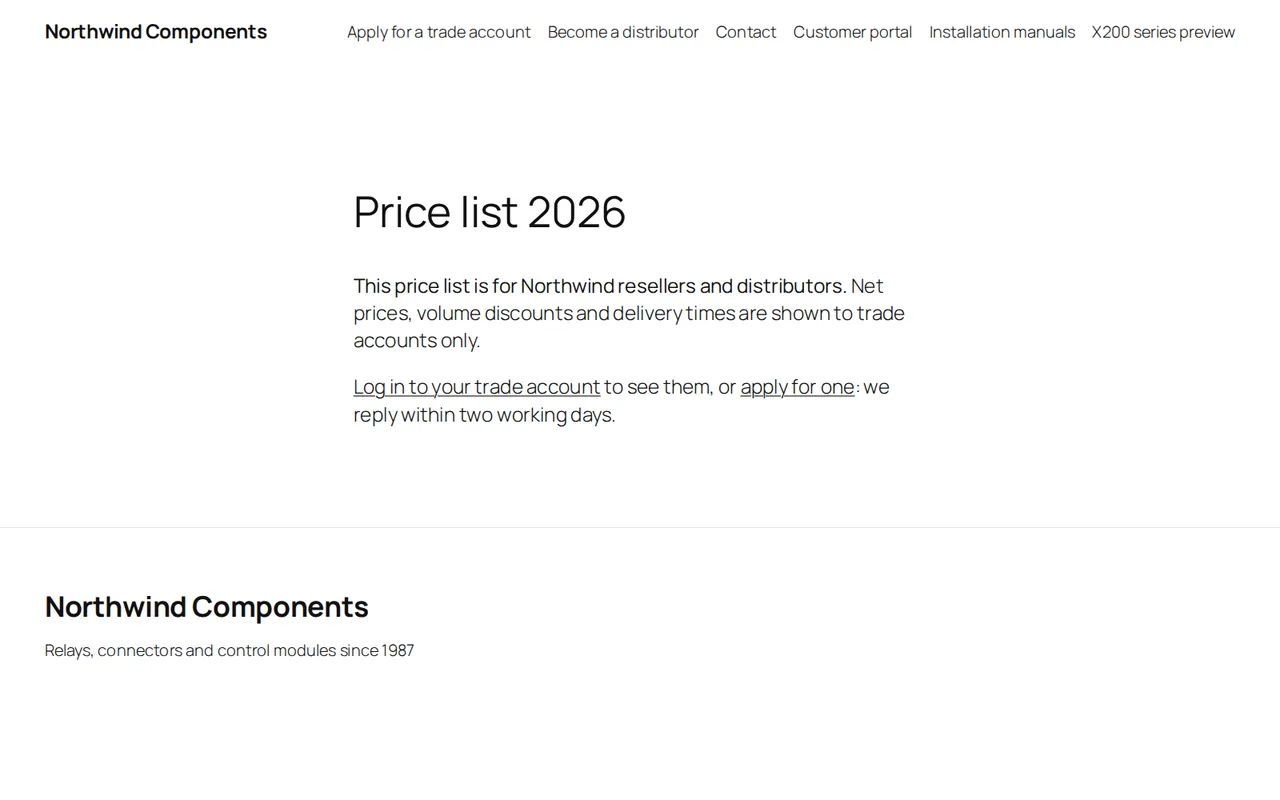
If you prefer visitors to understand what they are missing, choose A message where the content was instead and write a line with a link to log in or to ask for an account. Both choices are described in Choose what blocked visitors see.
4. Give members a way to log in
Members should not have to guess the login address. In a block theme, add the Login/out block to the header: it shows a login link to visitors and a logout link to members. You can also add the members area to the menu so members find it after logging in.
To show a paragraph only to people who are not logged in, such as "Ask for an account", use the free shortcode: [content_gate who="logged_out"]Ask us for an account.[/content_gate]. See Restrict part of a page with the shortcode.
5. Test it as a member and as a visitor
Administrators always see everything, so check from a private browser window: first without logging in, then logged in with a test Subscriber account.
Going further: groups, lists and a closed site
- Several groups. Resellers and distributors, or clients and staff, need a role each and rules for Only certain roles, which is a Pro feature. The steps are in how to restrict content by user role.
- Posts, not just pages. With Pro, a rule can cover a whole category, so every post you file under Members is reserved, including future ones.
- Titles in lists and search. Blocking a page does not remove its title from blog lists or the site search. Pro can keep reserved content out of those places and out of the REST API.
- The whole site. For an intranet, one rule with The whole site puts everything behind a login, while the login page stays reachable.
With the 7-day trial you can test all of this on your real site without a card. At the end of the trial your rules stay saved, and only the first 2 keep working until a licence is active.
Files and other limits to know
A members area protects pages. It does not protect files uploaded to the media library: each PDF or image keeps a direct address that works for anyone who has the link, and no plugin can close it from inside WordPress. If your area is mostly documents, keep them in Dropbox or Google Drive and show them through a portal, as explained in how to share files with clients securely.
Page caching is usually not an issue, because caching plugins serve stored copies to visitors who are not logged in and leave members alone. If a page still shows its content to logged out visitors after you saved the rule, clear the cache and check again in a private window.
Finally, give each person their own account. A shared login cannot be switched off for one person and tells you nothing about who used it.
Which option fits you
For one page shown for a few days, a password-protected page is enough. If you sell access, with levels and recurring payments, choose a membership plugin. For a members only area in WordPress for clients, partners or staff you already know, WordPress accounts plus a login rule do the job with far less setup, and the free version of Content Gate covers one group with no time limit. Add roles, categories and hidden titles only when your area grows.
Frequently asked questions
How do I make a page members only in WordPress without a plugin?
With core WordPress you can set a page to Private, which only administrators and editors can read, or protect it with one shared password. For a page that every logged in member can open, you need a plugin or custom code.
How do members log in to a members area?
Through the normal WordPress login page. Add a login link to your menu or header, for example with the Login/out block, and set blocked pages to redirect to the login page so members return to the page they wanted.
Can visitors sign up to the members area on their own?
Yes, if you tick Anyone can register in Settings > General and choose Subscriber as New User Default Role. For a business area it is often safer to create accounts yourself.
What is the difference between a members area and a membership site?
A members area is a reserved part of a site for people you give access to. A membership site sells that access, usually with levels, payments and renewals, and needs a membership plugin to manage them.