To restrict content by user role in WordPress, you give each group of people its own role (for example Customer, Reseller or Staff) and then add a rule, usually with a plugin, that says which roles may open which pages. WordPress itself has no setting for "only this role can see this page": its built-in options are private pages, which only administrators and editors can read, and password protection, which works with one shared password.
This guide explains what roles are, what core WordPress can and cannot do, the realistic options with their pros and cons, and a step-by-step example you can follow on your own site.
What a user role is in WordPress
Every account on a WordPress site has a role. The role decides what the person can do in the admin area: write posts, publish them, edit other people's work, install plugins. WordPress ships with these roles, described in the official Roles and Capabilities documentation:
| Role | What it can do |
|---|---|
| Administrator | Everything on a single site: settings, plugins, themes, users. |
| Editor | Publish and manage posts and pages, including other users' posts. |
| Author | Publish and manage their own posts. |
| Contributor | Write their own posts but not publish them. |
| Subscriber | Only manage their own profile. |
A sixth role, Super Admin, exists only on a multisite network. Other plugins add roles of their own: WooCommerce, for example, gives shop buyers the Customer role. The role a new account receives is set in Settings > General, under New User Default Role.
The key point: roles control the admin area, not the public pages. A Subscriber who is logged in sees exactly the same public page as a visitor without an account. To show a page only to some roles, you need something that checks the role before the page is sent.
What WordPress can do without a plugin
In the page editor, the visibility setting of a page or post offers three choices (see the Content Visibility documentation):
- Public: everyone can see it.
- Private: hidden from the public and from post lists. Only users with the permission to read private content can open it, which by default means Administrators and Editors.
- Password protected: visitors see the title and a password box. Anyone who types the password sees the content.
Neither is a role restriction. Making your resellers Editors just so they can read a private page would also let them edit and publish content on your site, which is a bad trade. A password works for one page shared for a short time, but everyone uses the same password, you cannot see who used it, and you cannot remove access for one person without changing it for everyone.
Ways to restrict content by user role
Once you know core WordPress is not enough, you have four realistic routes. Which one is right depends on what else you need.
| Option | Good for | Watch out for |
|---|---|---|
| A role manager plugin with content permissions (for example the free Members plugin) | Creating custom roles and choosing, post by post, which roles can read the content. | You set access page by page. Check how it handles lists, search and what blocked visitors see. |
| A full membership plugin (Paid Memberships Pro, MemberPress and similar) | Selling access: levels, payments, renewals, sign-up forms. | Much more setup than you need if nobody pays and you already know your users. |
| A content restriction plugin such as Content Gate | Rules per role across pages, post types, categories, single blocks and widgets, with a message, a redirect or another page for everyone else. | Role conditions are a Pro feature. It does not create roles. |
| Custom code in the theme | A developer who wants full control over one template. | Needs maintenance and is easy to get wrong when the theme changes. |
Whatever you choose, the roles themselves come first. If the default roles do not describe your groups, create new ones with a role editor such as the Members or User Role Editor plugins, both free on WordPress.org. A good habit is to copy the Subscriber role and rename it (Reseller, Distributor, Staff): the new role gets no extra power in the admin area, only a label your restriction rules can check.
Step by step: restrict a page to one role
This example uses Content Gate and follows its guides. The goal: a price list page that only users with the Reseller role can open, while everyone else reads a short message.
1. Create the role and assign it
- Create a Reseller role with your role editor plugin, as described above.
- For a new person, go to Users > Add User, fill in username and email, pick Reseller in Role and click Add User. Tick Send User Notification if they should receive an email about their account.
- For an existing account, open it in Users, change the Role and save.
2. Find the page ID
Open the price list page for editing and look at the address bar: in post.php?post=12&action=edit the ID is 12.
3. Write the rule
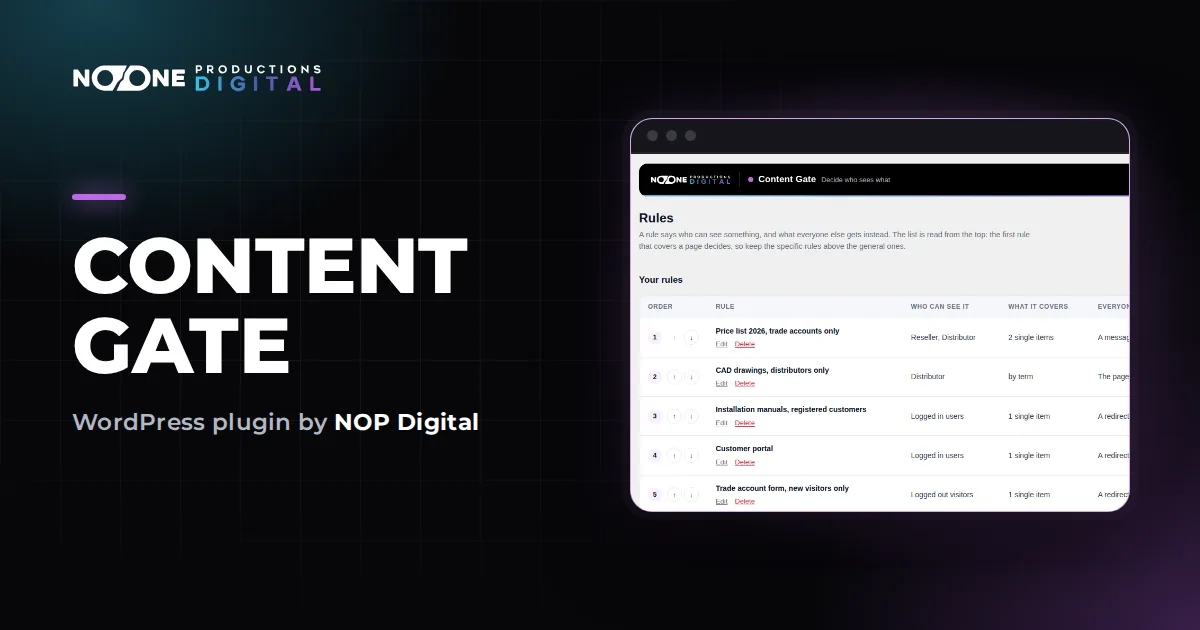
- Go to Content Gate > Rules and click Add rule (or Write the first rule on an empty list).
- 1 Name it: a name only you will see, such as Price list, resellers only.
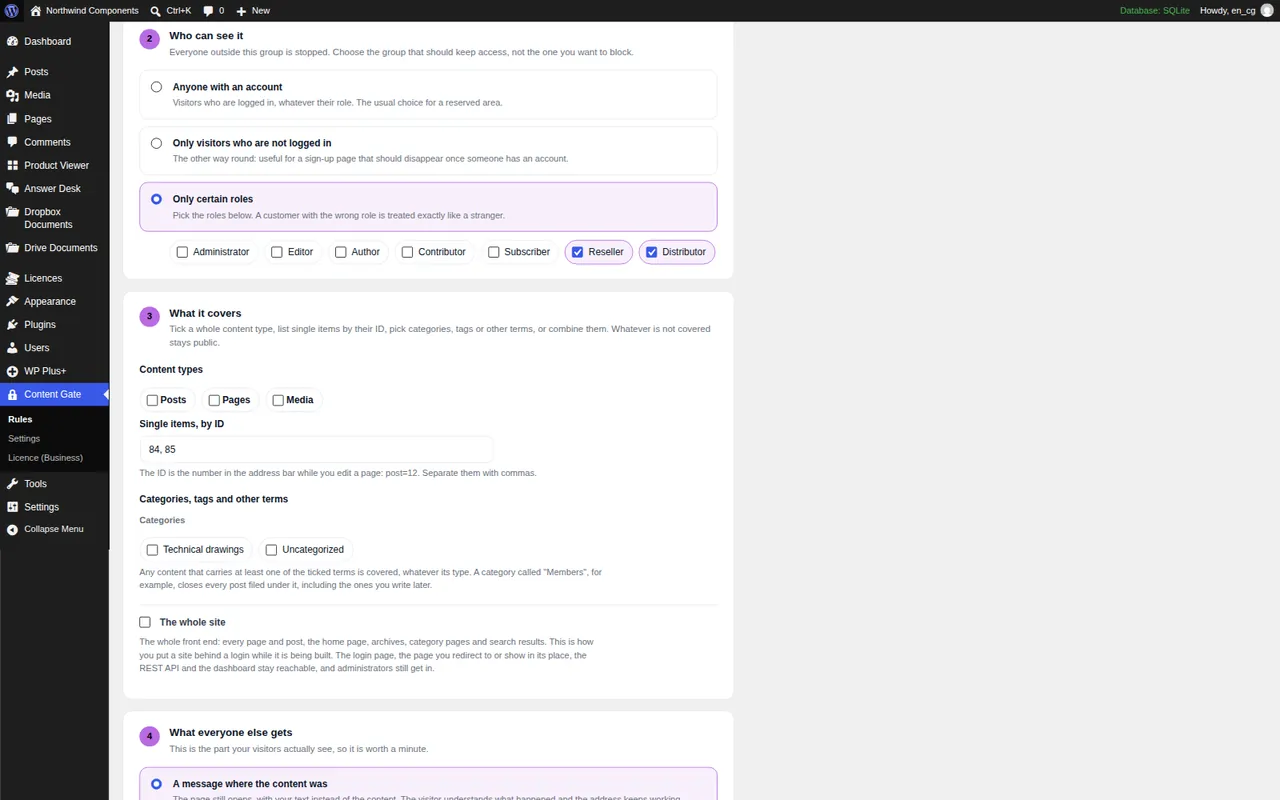
- 2 Who can see it: choose Only certain roles and tick Reseller. You pick the group that keeps access, not the one you want to block.
- 3 What it covers: type
12in Single items, by ID. - 4 What everyone else gets: choose A message where the content was and write something useful, for example how to apply for a reseller account.
- Check that This rule is on is ticked and click Save rule.
4. Check it as a visitor
Administrators always see everything, so your own view does not change. Open the page in a private browser window, then log in there with a test account that has the Reseller role and one that does not. The full walkthrough is in Write your first rule.
Exceptions, parts of pages and lists
Real sites rarely stop at one page. Three situations come up again and again.
Several rules on the same content
Content Gate reads rules from the top down and the first rule that covers a page decides. Put specific rules above general ones: a rule "page 42 for Resellers" must sit above "all Products for anyone with an account", otherwise the general rule lets every customer in. The order and every option are explained in How rules work.
Only part of a page
Often the page can stay public and only the prices are reserved. With Pro, each block in the block editor gets a Visibility panel: switch on Restrict this block and pick Certain roles only. The block is removed on the server for everyone else, not just hidden. In other page builders, wrap the text in the shortcode, for example [content_gate who="roles" roles="reseller"]Net prices...[/content_gate], using the role's internal lowercase name. Details are in Restrict a single block.
Titles in lists and search
Blocking a page does not remove its title from blog lists, category pages or the site search. If even the title is confidential, tick the options in step 5 Outside the page itself (Pro), which also keep the content out of the REST API.
What role restrictions do not protect
- Uploaded files. A PDF or image in the media library keeps its own direct address. Hiding the page that links to it does not close that address, and no plugin can close it from inside WordPress. For private documents, use a file portal instead: see how to build a client portal with Dropbox.
- People who share their login. A role restriction trusts the account. Give each person their own account so you can remove access for one of them.
- Your own view. As administrator you see everything. Always test from a private window or a test account.
Page caching is rarely a problem for role rules, because caching plugins usually serve stored copies only to visitors who are not logged in. If a rule seems to do nothing, clear the cache and check the rule is On and not tagged over the free limit.
Which option fits you
If only one page is involved and access is temporary, a password-protected page is enough. If you sell access with payments and renewals, a membership plugin is built for that. If you need custom roles and do not mind setting access post by post, a role manager with content permissions is a solid free choice.
If you want to restrict content by user role across a whole site, with clear rules, exceptions, single blocks and a proper message or redirect for everyone else, Content Gate keeps it in one short form. Its free version already covers a simple logged-in area (see how to create a members only area); roles are part of Pro, whose Business licence is €29,90 / year for 1 site, VAT included.
Frequently asked questions
Can I restrict a page to one user role without a plugin?
Not with the standard settings. Private pages are readable only by administrators and editors, and password protection uses one password for everyone. Showing a page to a specific role needs a plugin or custom theme code.
How do I create a custom user role in WordPress?
WordPress has no screen for creating roles. Install a role editor such as Members or User Role Editor, create the new role (copying Subscriber is a safe starting point) and then assign it to users from the Users screen.
Does a Subscriber see more than a visitor without an account?
On public pages, no. A Subscriber can only manage their own profile in the admin area. They see extra content only when a plugin or your theme checks their role or login status.
Are files in the media library protected when I restrict a page?
No. Files uploaded to the media library keep a direct address that works for anyone who has it. Keep confidential files out of the media library, for example in a private Dropbox or Google Drive folder shared through a portal.