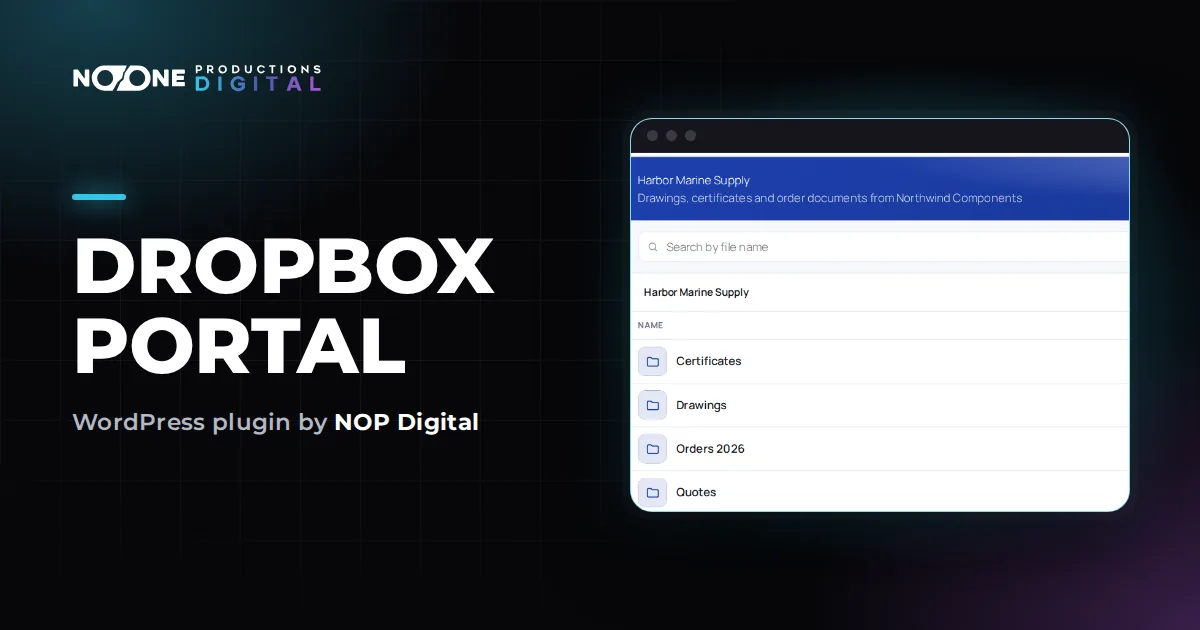
A WordPress client portal with Dropbox is a private page on your own site where each client logs in and sees only their own Dropbox folder, with no share link to send, lose or forward. To build one you need three things: a WordPress account for each client, a rule that links each client to a folder, and a way to show that folder which checks who is asking. This guide compares the ways to do it and walks through a complete setup.
What a WordPress client portal with Dropbox needs
Most businesses that search for this already keep client files in Dropbox, one folder per client or project. The problem is getting those files to the right person without a pile of links in old emails. A client portal fixes that if it does four jobs well.
- A login. Each client has their own account on your WordPress site, so access can be switched off when the job ends.
- One folder per client. Client A must never see a file that belongs to client B, even by guessing an address.
- No public links in the middle. If the portal just lists Dropbox share links, anyone who gets hold of a link can open the files without logging in.
- No double work. You keep saving files to Dropbox as you do today, and the portal shows the new files by itself.
Keep these four points in mind as you look at the options below. Most shortcuts fail on the third one.
Four ways to connect Dropbox to a client area
1. A password-protected page with Dropbox links
WordPress can password protect a page from its Visibility setting. You create one page per client, paste their Dropbox share links into it and send them the password. It is free and takes minutes.
The weak point is that the page is protected but the links are not. Dropbox states that anyone with the link can preview the content, so a link copied from the page works for whoever receives it. Every new file also means a new link to paste by hand.
2. Embedding a shared Dropbox folder
Dropbox offers an Embedder that shows a file or folder preview inside an iframe on a web page. It needs a Dropbox app key and your domain registered in the Dropbox App Console. It looks tidier than a list of links, but it is built on a shared link, so the same weakness applies: the folder behind it is still reachable through that link.
3. A general client portal or cloud storage plugin
Some WordPress plugins and hosted portal services connect to several cloud storage providers and add extras such as uploads, e-signatures, invoices or project messages. They are worth a look if you need a full client workspace. They also take longer to learn, and they differ in where your files are stored and how they travel, so check that for each one before you choose.
4. A dedicated Dropbox portal plugin
Dropbox Portal does one thing: it shows Dropbox folders on a WordPress page, only to logged-in users whose role is allowed to see them. It never creates a Dropbox share link. Every download goes from your Dropbox, through your site, to the logged-in client, and the plugin only has read permission on your Dropbox.
| Option | Per-client access | Links work without login? | New files appear by themselves |
|---|---|---|---|
| Password-protected page with links | One page and password per client | Yes | No, you paste each link |
| Embedded shared folder | One embed per client | Yes, through the shared link | Yes |
| General portal plugin or service | Depends on the product | Depends on the product | Depends on the product |
| Dropbox Portal | One rule per role | No, every file is checked by your site | Yes, within a few minutes |
Step by step: a private Dropbox client area on WordPress
The steps below use Dropbox Portal. Before you start, check the requirements: WordPress 6.2 or later, PHP 7.4 or later, a site on https:// and any Dropbox account (a free one works).
Step 1: organise the Dropbox folders
Create one folder per client, for example /Clients/Acme and /Clients/Brightside. Subfolders are shown in the portal too, so you can keep your usual structure inside each one (Drafts, Final, Invoices).
Step 2: install the plugin and connect Dropbox
Upload the zip in Plugins > Add New Plugin > Upload Plugin and activate it. A new menu item, Dropbox Documents, appears. Open Dropbox Documents > Dropbox connection and follow the numbered steps, which the guide Create the Dropbox app and connect your account explains click by click:
- In the Dropbox App Console, click Create app, choose Scoped access, then App folder (safer, the site reads only
Apps/<your app name>) or Full Dropbox (if your client folders already live elsewhere). - In the Permissions tab, tick
account_info.read,files.metadata.readandfiles.content.read, then click Submit. - Copy the Redirect URI from the plugin screen and add it under Redirect URIs in the app's Settings tab.
- Paste the App key and App secret into the plugin and click Save keys.
- Click Connect Dropbox, then Allow on Dropbox. Finish with Check the connection.
Step 3: give each client an account and a role
Access in the plugin works by WordPress role, not by single user. For a folder per client, give each client their own role. WordPress has no screen for creating roles, so use a role manager plugin such as the free User Role Editor, and base each new role (for example "Client Acme") on Subscriber, which has no admin rights. Then create the client's user under Users and choose that role.
Step 4: link each role to its folder
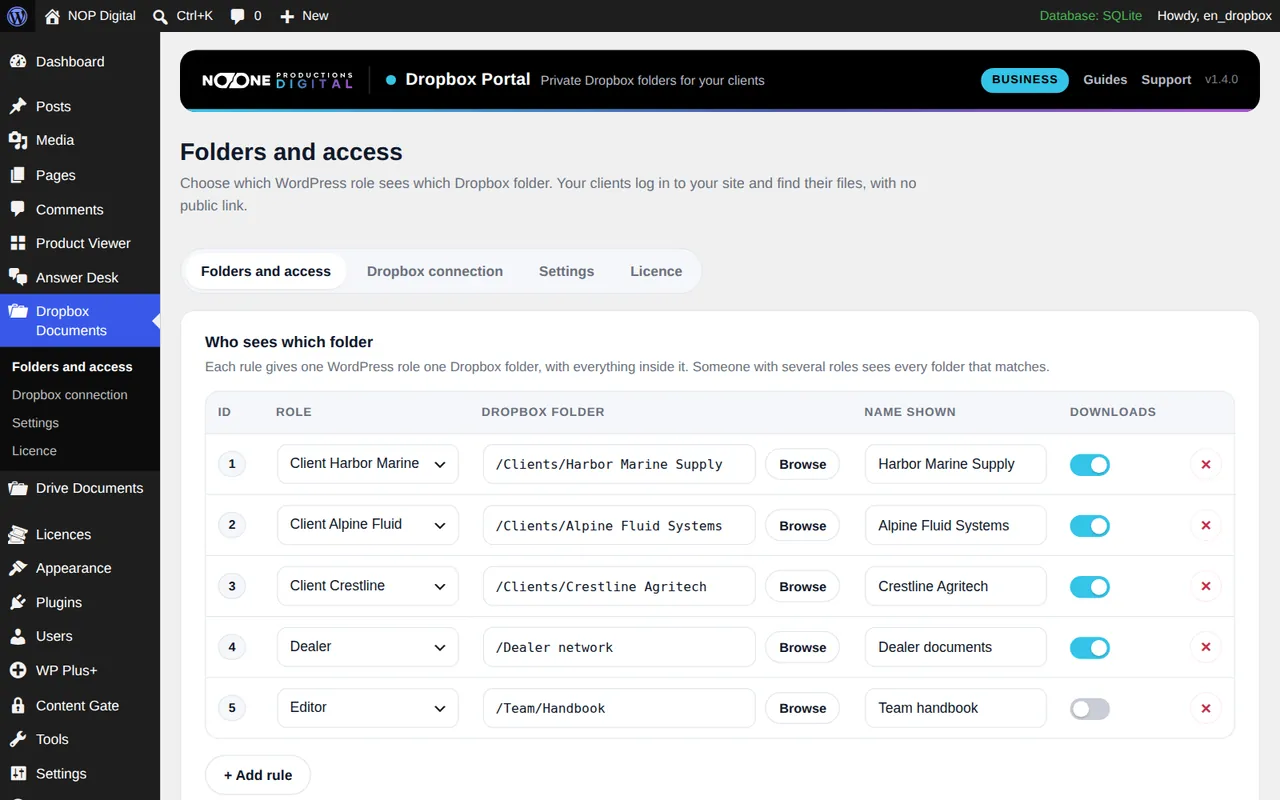
In Dropbox Documents > Folders and access, box Who sees which folder, click + Add rule. Choose the role, click Browse to pick the Dropbox folder and click Use this folder, type a Name shown, then click Save rules. Repeat for each client. The guide Give roles access to folders covers how rules combine and what users with no rule see.
Step 5: put the portal on a page
Create a page such as "Client area", add a Shortcode block with [nopd_dropbox_portal] and publish it. The same page serves every client: each person sees only the folders of their role. Visitors who are not logged in see "You need to sign in to view the private documents." The plugin does not add a login form, so put your usual login link or form on the page. More options, such as a title or a grid view, are in Put the portal on a page.
Step 6: test it as a client
Administrators see every folder in the rules by default, so your own view proves little. Log in with a test client account in a private browser window and check that only that client's folder appears and that a download works. Then copy the download address, log out and paste it: it should not open.
Running the client portal day to day
Once it is set up, you work in Dropbox as before. Save a file into the client's folder from the desktop app, the phone or dropbox.com, and it appears in the portal within a few minutes. The plugin remembers folder contents for 5 minutes to keep the site fast; the Refresh button in the portal or Clear cache in the admin shows new files at once.
Downloads pass through your server, so they use your hosting bandwidth. The Maximum download size setting blocks files over 512 MB by default; raise it if you share large videos and your hosting allows it. To remove a file from the portal, delete it or move it out of the folder in Dropbox. When a job ends, change or remove the client's role and their access stops.
What the free version covers and what needs Pro
The free version runs a real portal with no time limit, but only the first rule works. That is enough for one group, for example all your dealers seeing one shared folder. A private folder for each client needs more than one rule, so it needs Pro.
Pro also adds search by file name, image and PDF previews with thumbnails, a grid view, view-only rules with downloads switched off, dark and auto themes with your own portal colour, and a configurable cache duration. You can try Pro free for 7 days from inside the plugin with no card; the Business licence for one site is €29,90 / year.
Some limits apply to every version. Clients cannot upload files through the portal, because the plugin only reads Dropbox. Dropbox Business team spaces with their own namespace are not supported in the current version, although team folders mounted in the connected account are.
Which option fits you
If you share a handful of files once in a while, a password-protected page with Dropbox links is enough, as long as you accept that the links themselves stay public. If you need uploads, invoices and messaging in one place, look at a full client portal service. If your client files already live in Dropbox and you want each client to log in to your own site and see only their folder, with no public link anywhere, a dedicated portal plugin like Dropbox Portal is the shortest route. For the security side of the choice, read how to share files with clients securely, and if your work is photos or video, see how to deliver photos and videos to clients.
Frequently asked questions
Can I embed a Dropbox folder in WordPress?
Yes. Dropbox's own Embedder shows a file or folder preview in an iframe, but it is built on a shared link, so anyone with that link can still reach the files. For a private client area you need a solution that checks the login before every file.
Do my clients need a Dropbox account to use the portal?
No. Clients log in to your WordPress site with the account you create for them. Only you need a Dropbox account, and a free one works.
Can clients upload files to my Dropbox through the portal?
Not with Dropbox Portal: it only has read permission on your Dropbox, so clients browse and download. If you need client uploads, you need a different tool or a separate upload form.
Can one page show a different folder to each client?
Yes. The same page with the portal shortcode shows each logged-in user only the folders linked to their role. Giving each client their own role and folder takes one rule per client, which needs Pro.