To share files with clients securely, tie access to the person, not to a link anyone can forward, and make sure you can take that access away when the job is over. With Dropbox that means inviting the client to a folder, adding a password and an expiry date to your links (on the plans that allow it), or letting clients download from a private, logged-in area on your own website. This guide explains why plain share links are the weak point and compares the safer options.
Why public Dropbox links are risky for client files
A standard Dropbox share link is a key without a name on it. Dropbox's own help page says it plainly: anyone with the link can preview the content, with no Dropbox account needed. That is convenient, and it is also the problem.
- Links travel. A client forwards your email to a colleague, a supplier, a personal address. Each copy opens the same files.
- Links last. A link keeps working until you remove it. A folder you shared for a project two years ago may still be open to whoever kept the email.
- Links get mixed up. With many clients, pasting the wrong link into the wrong email is an easy mistake, and one that shows one client's documents to another.
- Not every plan can lock a link. Passwords and expiry dates on links are only available on some Dropbox plans (see below). On others, a link is either on or off.
None of this means Dropbox is unsafe. It means an open link is the wrong tool for contracts, invoices, personal data or unreleased work.
What sharing files with clients securely means in practice
Before comparing tools, it helps to know what you are aiming for. A secure way to share client files ticks most of these boxes:
- Only the right person gets in, because they identify themselves (an account, a password), not because they hold a link.
- They get only what they need: their own folder, and view or download rights rather than the power to edit or delete.
- Access can end, either on a date or when you remove it, without having to chase copies of links.
- You keep one source of truth. The file lives in one place; you do not scatter attachments across inboxes.
Safer ways to share with Dropbox itself
Invite the client to a shared folder
Instead of a link, you can invite a client by email to a folder. Dropbox notes that the person must have a Dropbox account and be logged in to view or edit invited content. That is real access control: the folder is tied to their account. When the job ends, you remove them from the folder, and Dropbox asks whether to leave them a copy of the files.
The catch is the account. Many clients do not have Dropbox, or use it with a personal address, and asking them to sign up just to collect a few files creates friction.
Add a password, an expiry date or view only to links
On Dropbox Professional, Essentials, Standard, Advanced, Business, Business Plus and Enterprise, link settings let you require a password, set an expiration date after which the link is disabled, and disable downloads. On dropbox.com, click Share next to the file or folder, open the settings icon, switch on the option you need and save. Dropbox Basic (free), Plus and Family are not on that list of plans.
Two limits are worth knowing. A password is still shared knowledge: whoever has the link and the password gets in. And Dropbox itself says that disabling downloads stops downloads through Dropbox but does not stop people saving the content by other means.
Use Dropbox Transfer for one-off deliveries
Dropbox Transfer sends a copy of files as a download link, and the recipient does not need a Dropbox account. On Basic, Family and Plus a transfer expires after 7 days by default; higher plans can set custom expiry dates and passwords. It suits a single delivery, less so a place clients return to.
Sharing from a private area on your own website
The other route is to stop sending links altogether. Your clients log in to your website, and the site decides what each one can see. If your files are already in Dropbox, a plugin such as Dropbox Portal does this for WordPress without moving anything.
Each rule links a WordPress user role to a Dropbox folder. A client logs in and sees only the folders that match their role. When they click Download, the file is streamed from Dropbox through your site, so the Dropbox address is never revealed and no share link is ever created. If someone copies the download address and sends it on, it does not work for anyone who is not logged in with the right role. The plugin asks Dropbox only for read permissions, so it cannot change, move or delete your files.
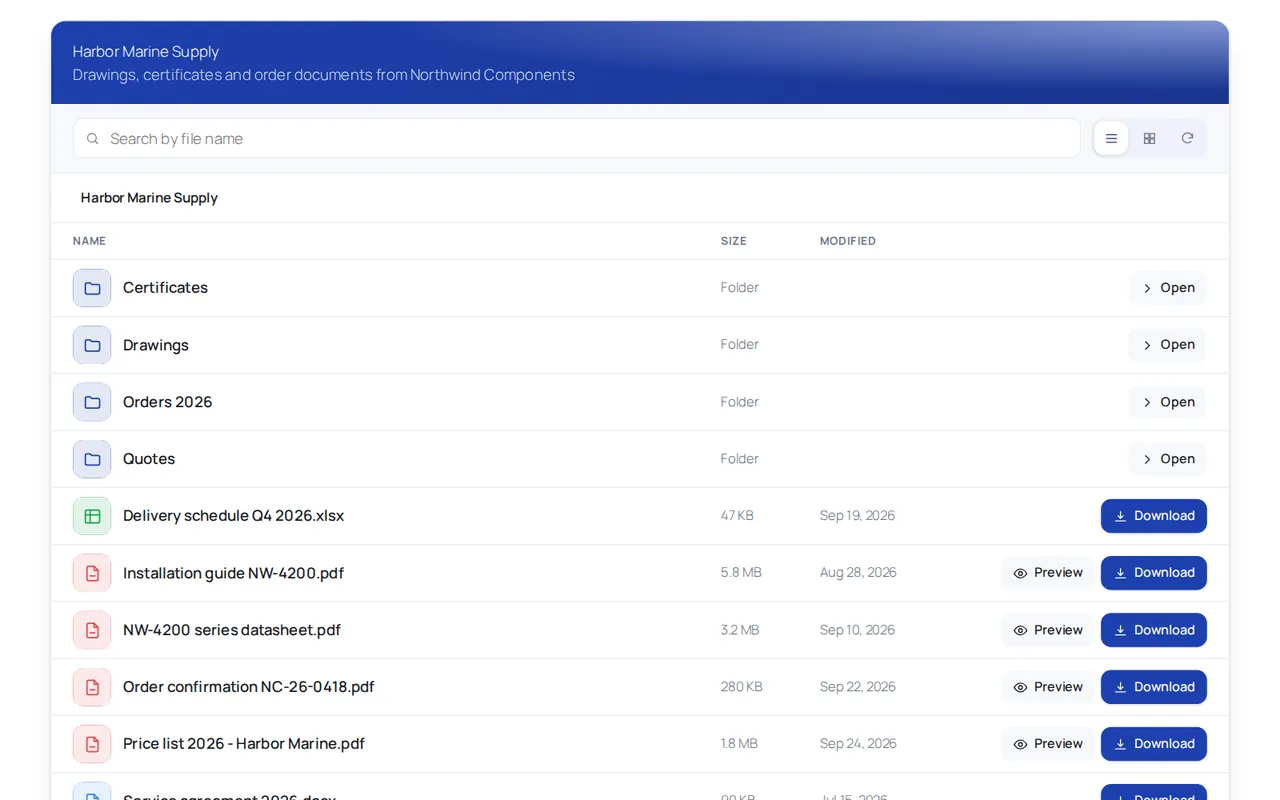
Access ends when you change or remove the client's role, and you keep working in Dropbox as before: files you add to the folder appear in the portal within minutes. Setup takes a Dropbox app with three read permissions, explained in Create the Dropbox app and connect your account, and one rule per folder, explained in Give roles access to folders.
What is free and what is not: the free version runs one rule, so one group of users sharing one folder. A private folder for each client, view-only folders with downloads switched off, search and previews need Pro, which you can try for 7 days without a card. Downloads use your hosting bandwidth, and clients cannot upload through the portal.
Comparing the options
| Method | Client needs | Forwarded link works? | Ends when |
|---|---|---|---|
| Plain Dropbox link | Nothing | Yes | You remove the link |
| Link with password and expiry (eligible plans) | The password | Yes, with the password, until expiry | The expiry date or removal |
| Invite to a shared folder | A Dropbox account | No, access is tied to their account | You remove them |
| Dropbox Transfer | Nothing (a password on higher plans) | Yes, until it expires | The expiry date |
| Private area on your site | A login on your site | No, every file is checked | You change their role |
Good habits whichever tool you use
- One folder per client. Never share a parent folder that holds several clients, even for a moment.
- Send passwords separately. A password in the same email as the link protects nothing if the email is forwarded. Use a phone call or a text message.
- Close projects properly. At the end of a job, remove links, members or roles. A short checklist at project close saves surprises later.
- Keep attachments for small, harmless files. Every attachment is a copy you can no longer control or update.
- Name files clearly. A file called "Contract Acme v3 signed.pdf" is harder to send to the wrong client than "scan0042.pdf", and easier for the client to find.
- Test as the client. Open the link or log in with the client's account in a private browser window and check what they really see.
Which way to share fits your business
If you send a few files a year to clients who use Dropbox, invite them to a folder and remove them at the end. If you are on a Dropbox plan with link settings, use passwords and expiry dates for anything sensitive, and Transfer for one-off deliveries. If you share files with many clients every week, and want them to collect everything from your own site with nothing to forward, a private portal backed by your Dropbox folders is the tidiest option. The full setup is in how to build a WordPress client portal with Dropbox, and if you use Google Drive instead, see the Google Drive client portal guide.
Frequently asked questions
Is a Dropbox link secure enough for client documents?
A plain link opens for anyone who has it, so it is fine for harmless files but weak for contracts, personal data or unreleased work. Use a password and expiry date, an invitation, or a logged-in area for those.
Which Dropbox plans let me password protect a shared link?
Dropbox lists link passwords and expiry dates for Professional, Essentials, Standard, Advanced, Business, Business Plus and Enterprise. Basic, Plus and Family are not on that list.
Does disabling downloads stop a client copying my files?
No. Dropbox notes it only blocks downloads through Dropbox, and anything shown on a screen can still be saved or photographed. Treat it as a deterrent, not a lock.
What is the safest way to send the password for a shared link?
Send it through a different channel from the link, for example by phone or text message, so a forwarded email does not carry both.