To embed a Google Drive folder in WordPress without a plugin, you paste an iframe that points at Google's embedded folder view into a Custom HTML block. It works only if the folder is shared with Anyone with the link, so it suits public files such as brochures. If the folder holds client or internal documents, use a plugin that reads Drive from your server and shows the files only to logged-in users.
Four ways to embed a Google Drive folder in WordPress
There is no single "embed" button for folders in Google Drive. What you can do depends on two questions: do you want to show a whole folder or a single file, and may the files be public?
| Method | Shows | Files must be public | Updates by itself | Effort |
|---|---|---|---|---|
| Folder iframe (embedded folder view) | A whole folder, list or grid | Yes | Yes | 5 minutes, no plugin |
| Publish to the web or file preview | One document, sheet, slide deck or file | Yes | Yes for published Docs, Sheets and Slides | 5 minutes per file |
| Drive plugin with "Sign in with Google" | Folders and files, many layouts | Depends on the plugin | Yes | Plugin setup plus a Google app |
| Private portal plugin (service account) | The folders of the logged-in user | No | Yes | About 15 minutes |
The first two are free and fast. The last two take longer to set up but are the only way to keep the files away from people who are not logged in.
Method 1: embed a public folder with an iframe
Google Drive can show a folder in a stripped-down page designed for embedding. You point an iframe (a window that shows another web page inside yours) at it, and visitors see the file names with icons. Here is how to set it up.
- In Google Drive, right-click the folder and choose Share. Under General access, choose Anyone with the link and leave the role on Viewer.
- Open the folder and look at the address bar. The address looks like
drive.google.com/drive/folders/1AbC...xyz. The long code afterfolders/is the folder ID. Copy it. - In WordPress, edit the page, click + to add a block and choose Custom HTML.
- Paste this code and replace FOLDER_ID with your ID:
<iframe src="https://drive.google.com/embeddedfolderview?id=FOLDER_ID#list" width="100%" height="600" style="border:0"></iframe> - Click Preview, check the folder appears, then publish.
Change #list to #grid if you prefer thumbnails, which works better for photos. New files you add to the folder appear on the page automatically.
What this method cannot do
- It cannot be private. Google's help states that with Anyone with the link, anyone who has the link can use your file without signing in. The folder ID sits in your page's source code, and the ID is all someone needs to open the folder on Google.
- Files open on Google, not on your site. Clicking a file takes the visitor to Google Drive in a new tab, with Google's download button.
- No search, no styling. The look comes from Google and does not follow your theme.
- It is not an official feature. Google's embedding help covers documents, spreadsheets, presentations and forms, not folders. The folder view address works today, but because Google does not document it, it could change without notice.
Method 2: embed a single Google Doc, Sheet or PDF
If you really need one file on the page, for example a price list or a timetable, embed the file rather than the folder.
- Google Docs, Sheets and Slides: in the file, open File > Share > Publish to web, switch to the Embed tab, click Publish and copy the iframe code into a Custom HTML block. Google keeps the published version in step with your edits, unless you untick automatic republishing.
- PDFs, images and videos: open the file in Drive, choose Open in new window from the three-dot menu, then Embed item from the same menu in the new window. The file must be shared with Anyone with the link.
Both options have the same privacy limit as the folder iframe. A published document is visible to everyone on the web, unless your Google Workspace administrator limits publishing to your organisation. To take it offline, use Stop publishing in the same Publish to web window.
Method 3: a Google Drive plugin that signs in with Google
Search the WordPress plugin directory for Google Drive and you will find several plugins that embed files, folders, galleries and video players. Most connect through "Sign in with Google" (the OAuth method): you log in with your Google account and allow the plugin to read your Drive.
They are a good choice when you want rich layouts, galleries or media players and the content is public anyway. Before you pick one for private files, check two things.
- How downloads reach the visitor. Some plugins show files through Google's own viewer or a Google link. That link can work outside your site. Look for a setting that sends files through your server, or that respects a WordPress login.
- How the connection is made. If the plugin asks you to create your own Google app, with a consent screen, redirect URI and test users, the connection can stop after seven days while that app is in testing. We explain why, in plain words, in service account vs OAuth for Google Drive.
How to show a Drive folder on WordPress and keep it private
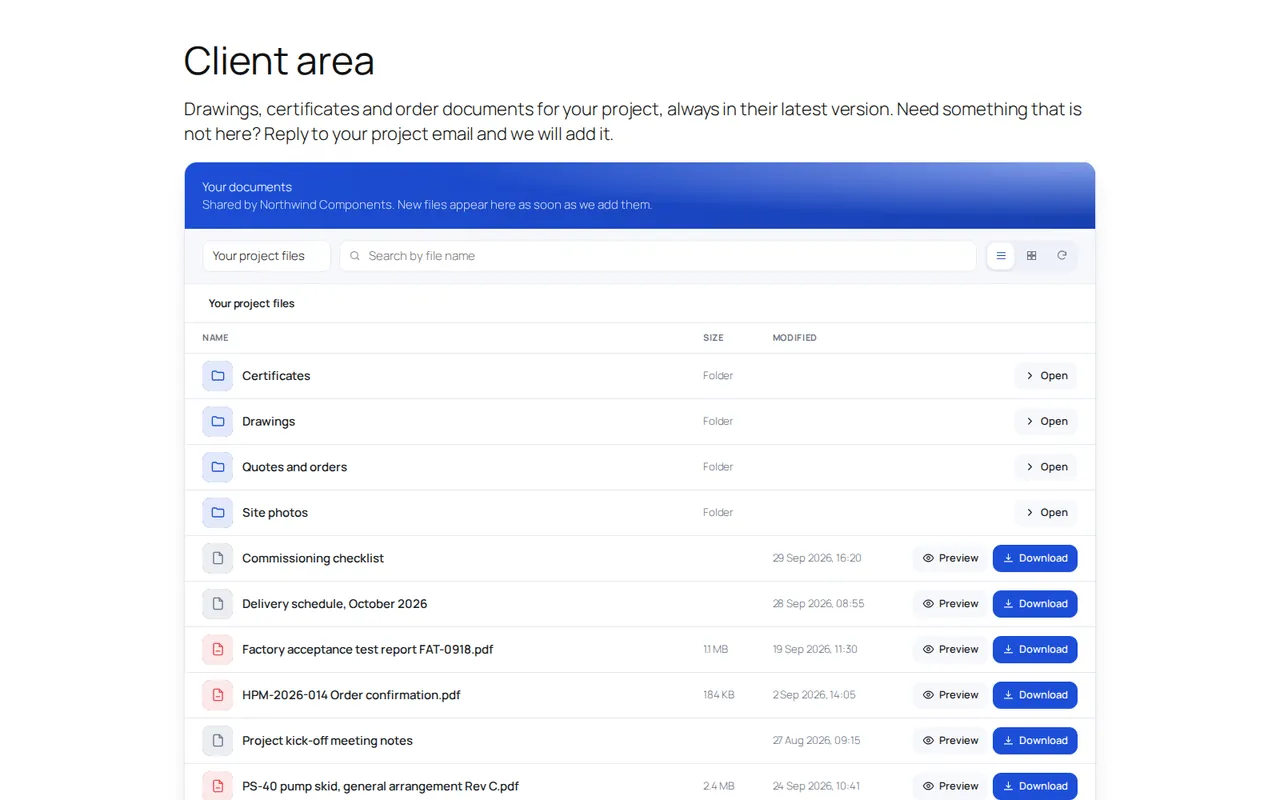
For private files, the folder in Drive has to stay Restricted: nobody gets a public link. Your website then reads the folder with its own permission and hands each file only to users who are logged in and allowed. This is what Google Drive Portal does, and the free version is enough to try it on a real folder.
Setup takes about 15 minutes, and the connection guide links every Google page you need.
- Install the plugin from Plugins > Add New Plugin > Upload Plugin. A Drive Documents menu appears.
- Connect Google Drive with a service account: a free, technical Google identity you create in your own Google Cloud project. You download its JSON key and save it in Drive Documents > Portal, box Connect Google Drive, with Save the key.
- Share the folder in Google Drive with the service account address the plugin shows you, as Viewer. The folder itself stays Restricted: only that address and the people you already chose can open it.
- Add a rule in Choose who sees which folder: click + Add rule, pick a WordPress role, click Browse, choose the folder with Use this folder, then Save settings. See access rules.
- Add the portal to a page with a Shortcode block containing
[nopd_drive_portal], and put a login link or login form on the same page.
Visitors who are not logged in see a message instead of the files. Logged-in users see only the folders linked to their role, can open subfolders and download files. Downloads travel from Google to your server and then to the user, so no Google link ever appears in the browser. Google Docs, Sheets and Slides download as Word, Excel and PowerPoint files.
What to know before you choose it
- Free or Pro. The free version runs one rule (one role, one folder), in list view with the light theme. Search, image and PDF preview, grid view, view-only folders and more rules need Pro, which you can try for 7 days without a card.
- Read only. The plugin never uploads, renames or deletes anything in Drive. Visitors cannot upload from the page.
- Bandwidth. Files pass through your hosting. You can set a Largest file that can be downloaded limit (512 MB by default).
- New files. Folder lists are remembered for 5 minutes, so a new file appears within that time, or at once when the user clicks Refresh.
If you want each client to see a different folder, the setup is covered step by step in how to build a Google Drive client portal.
Common problems when embedding Drive folders
- The iframe does not show the files. Check that the folder ID is complete and that the folder is not still Restricted. The iframe method needs Anyone with the link; if that is not acceptable, use a private method instead.
- The code appears as text on the page. You pasted it into a Paragraph block. Delete it and paste it into a Custom HTML block instead.
- Files you just added are missing. Reload the page. With Google Drive Portal, click Refresh in the portal, since the list is remembered for 5 minutes.
- The portal shows the wrong content after login. The page with Google Drive Portal is marked as not cacheable, and most cache plugins respect this. If you use a server or CDN cache such as Cloudflare page rules, exclude that page there too.
- Folders open but files do not. Google Drive Portal delivers files through
wp-admin/admin-post.php. If a security plugin blocks/wp-admin/for non-administrators, add an exception for that file.
Which way to embed a Google Drive folder fits you
If the files are meant for everyone, such as a brochure folder, event photos or a public archive, the iframe with embeddedfolderview is the fastest route and costs nothing. Accept that the folder is public and that it looks like Google, not like your site. For a single document, Publish to web is cleaner and officially supported.
If you want galleries and media players for public content, a Drive plugin that signs in with Google gives you more layouts. Check how it serves files and how its connection is made before you rely on it.
If the files belong to clients, dealers or staff, do not make the folder public at all. Keep it Restricted in Drive and let your site show it only to logged-in users, with a plugin such as Google Drive Portal or a similar tool that checks the login before every file.
Frequently asked questions
Can I embed a private Google Drive folder in WordPress?
Not with the iframe: Google's embedded folder view only works when the folder is shared with Anyone with the link. For private files, keep the folder Restricted and use a plugin that reads Drive from your server and checks the WordPress login before sending each file.
Does an embedded Google Drive folder update automatically?
Yes. The iframe shows the live content of the folder, so files you add in Drive appear when the page is reloaded. Plugins that cache folder lists may show new files a few minutes later.
How do I find the ID of a Google Drive folder?
Open the folder in Google Drive and look at the address bar. The ID is the long string of letters and numbers after /folders/ and before any question mark.
Can visitors download files from an embedded Drive folder?
With the iframe, clicking a file opens it on Google Drive, where the visitor can usually download it. If you need to switch downloads off or control who downloads, you need a plugin that serves the files itself.