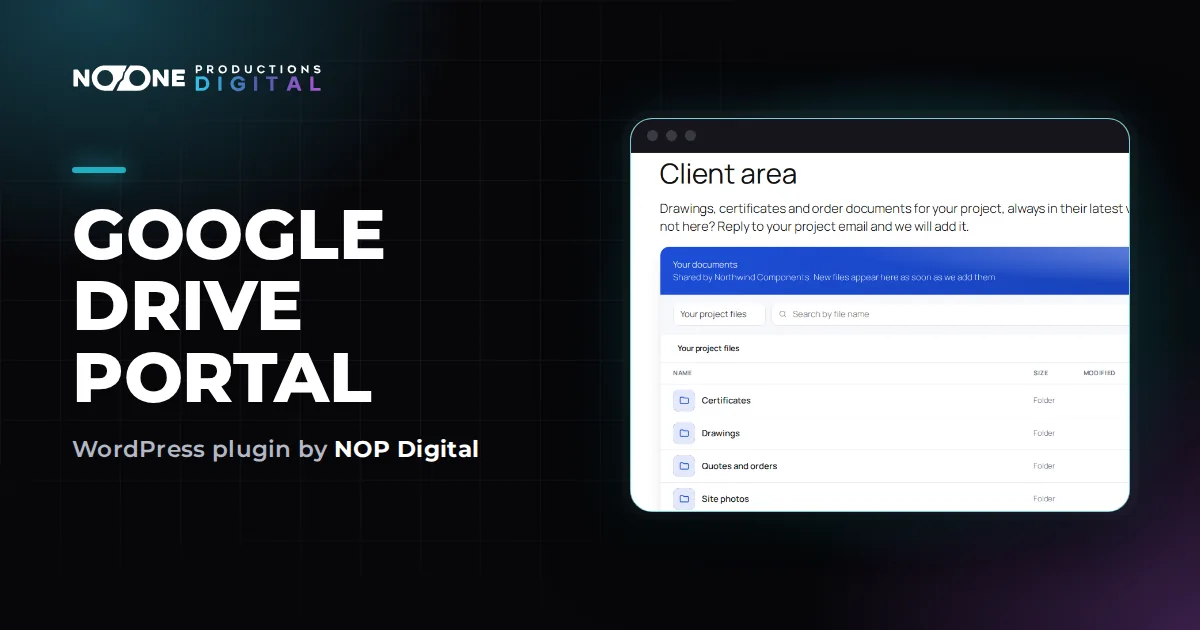
A Google Drive client portal is a private page where each client logs in and finds only their own Drive folder, always with the latest files. On WordPress you build one by connecting Drive to your site, giving each client a user account with their own role, and linking that role to the client's folder. You keep filing documents in Google Drive as you do today, and the portal shows them.
What a Google Drive client portal needs to do
Most businesses that look for this already have a Drive folder per client, dealer or project, and share it with links or invitations. That works for a few clients. As the list grows, the same problems come back.
- Links travel. A folder shared with Anyone with the link can be opened by whoever receives that link, without signing in.
- Clients get lost. They have to find the right email, the right link or the right folder in their own Drive.
- Folder names can leak. In Drive, access you apply to a folder is inherited by everything inside it. If you share a parent folder with a client, they see every client folder under it.
- Ending access is manual. When a project ends, you have to remember which folders and links to remove.
A good portal fixes these four points: one address to remember (your website), one login per client, one folder per client, and no public link anywhere in between.
Three ways to build a Google Drive client portal
| Option | Good at | Watch out for |
|---|---|---|
| Share each client folder directly in Drive | Free, no setup, clients can also upload if you make them editors | Clients usually need a Google account, access is managed file by file in Drive, no branding |
| A hosted client portal service | Extra features such as messages, forms, e-signatures | A monthly bill, another login for clients, often another place to store files |
| A WordPress plugin on your own site | Your address and brand, logins you already manage, files stay in your Drive | Setup of the Google connection, files use your hosting bandwidth |
Sharing folders directly is fine if you have a handful of clients who already use Google. A hosted service makes sense if you need a full client workspace. If you want your clients to go to your own website and find their documents there, a WordPress plugin is the shortest path. The rest of this guide shows that setup with Google Drive Portal; the planning part applies to any tool.
Plan your folders and roles first
Ten minutes of planning saves a lot of moving files later. The portal decides access with WordPress roles, the account types your site already has (Subscriber, Editor and so on). Each rule links one role to one Drive folder.
- One parent folder. In Drive, create a folder such as Client portal. This is the only folder you will share with the website.
- One subfolder per client. Inside it, create Rossi, Bianchi and so on. The website sees subfolders automatically.
- One role per client. Rules work by role, not by single user, so each client gets a role like Client Rossi. If a client has three people who need access, all three users get the same role.
- Shared folders for groups. Documents for everyone, such as price lists or manuals, go in a folder linked to a common role, for example Dealer. A user with several roles sees every matching folder.
With this structure a client opens only their own folder. The plugin checks every request, so even a guessed file address is refused if the file is not inside a folder assigned to that user.
Step by step: set up the portal on WordPress
1. Install the plugin
Download the free version, then in WordPress go to Plugins > Add New Plugin, click Upload Plugin, choose the zip and click Install Now, then Activate Plugin. A Drive Documents menu appears, with the Portal and Licence pages.
2. Connect Google Drive
The plugin connects with a service account: a technical Google identity that belongs to you and sees only the folders you share with it. You do not create an OAuth app or a consent screen, and the connection does not expire after 7 days. The full walkthrough is in Connect Google Drive; in short:
- Create a project at console.cloud.google.com (free) and enable the Google Drive API.
- In IAM and admin > Service accounts, click Create service account, give it a name and grant no roles.
- Open it, go to the Keys tab, click Add key > Create new key, choose JSON. Keep the downloaded file safe: it works like a password.
- In WordPress, Drive Documents > Portal, box Connect Google Drive, choose the file and click Save the key.
- In Google Drive, share the Client portal folder with the service account address as Viewer. Share the folder, not single files.
- Back in WordPress, click Run check. The last section, Reading, tells you if anything is missing.
Why this matters for a portal that must run for years is explained in service account vs OAuth, in plain words.
3. Create the client roles and users
WordPress has no button to create roles, so install a free role manager such as Members or User Role Editor. Create a role per client (the same permissions as Subscriber are enough), then in Users create each client's account and give it their role.
4. Link each role to a folder
In Drive Documents > Portal, find Choose who sees which folder.
- Click + Add rule (or Add your first rule).
- In Role, pick the client's role.
- In Drive folder, click Browse, open the client's subfolder and click Use this folder. You can also paste the folder link from Drive.
- In Name on the portal, type what the client will see, for example Your project files.
- Repeat for each client and click Save settings.
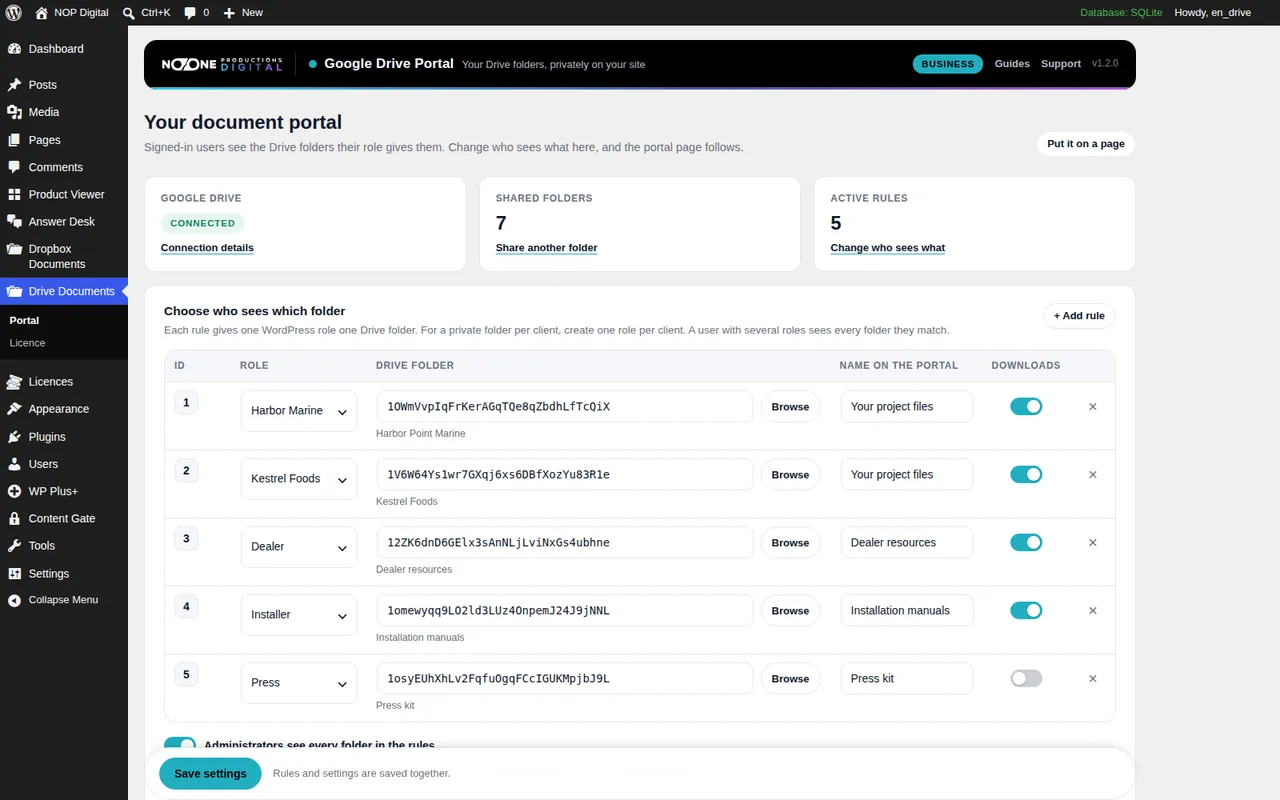
The details, including how rules combine, are in Choose who sees which folder.
5. Put the portal on a page
Create a page such as Client area, add a Shortcode block and type [nopd_drive_portal]. One page serves every client, because each user sees only their own folders. Add a login link or login form on the same page, since visitors who are not signed in see only a message. Then publish.
6. Test it as a client
By default Administrators see every folder in the rules, which is handy for checking but hides what a client sees. Create a test user with a client role, log in with it in a private browser window and open the page. If it says No document folder is linked to your account, check the user's role and the rule.
Running the portal day to day
- Adding documents. Save files into the client's folder in Drive, from the website, the app or Google Drive for desktop. They appear in the portal within 5 minutes, or at once when the client clicks Refresh.
- Google Docs, Sheets and Slides download as Word, Excel and PowerPoint, so clients do not need a Google account.
- Ending access. Remove the user's role, delete the user, or delete the rule. Nothing to chase in Drive.
- Documents to look at, not keep. In Pro, switch off Downloads on a rule to make that folder view only. It reduces access to the original files a lot, but anyone who can see a document on screen can still photograph it.
- Files from clients. The portal is read only: it never writes to your Drive, so clients cannot upload through it. Collect their files another way, for example with a form or email.
Two hosting details avoid most support requests. The portal page is marked as not cacheable, but a server or CDN cache (for example Cloudflare page rules) must exclude it too. And if a security plugin blocks /wp-admin/ for non-administrators, add an exception for admin-post.php, which the portal uses to deliver files.
Free version or Pro for a client portal
The free version runs one rule: one role linked to one folder, with folder browsing, protected downloads and a list view in the light theme. That is enough for a single group, for example all your dealers seeing the same price lists. You can save more rules, but only the first one works.
A folder for each client needs Pro, which adds unlimited rules, file search, image and PDF preview, grid view, view-only folders, your own colour and a dark theme. Pro starts at €29,90 / year for one site, and you can try every Pro feature for 7 days with no card from Drive Documents > Licence. When the trial ends the portal keeps working as the free version and your rules stay stored.
Which Google Drive client portal fits you
With five clients who all use Google, sharing each client folder directly from Drive is free and good enough. Share the client's own folder, never a parent folder, and review access when projects end.
If you need messaging, signatures and invoices in one place and do not mind a subscription, a hosted portal service is worth comparing.
If you want clients to log in on your own website, keep files in your own Drive and stop sending links, a WordPress portal is the practical choice. Plan one folder and one role per client, connect Drive with a service account, and test with a client account before you send the address out. If you keep files in Dropbox instead, the same approach is described in a WordPress client portal with Dropbox.
Frequently asked questions
Do my clients need a Google account to use the portal?
No. Clients log in to your WordPress site with the account you create for them. The files are read from your Drive by the website, and Google Docs are exported as Word, Excel or PowerPoint for download.
Can I use Google Drive itself as a client portal?
You can share one folder per client from Drive, and for a few clients that works. Each client then signs in with Google and you manage access folder by folder, with no single place on your site where they find everything.
How do I stop a client seeing other clients' folders?
Give each client their own folder and share or link only that folder, never the parent. In a WordPress portal, give each client their own role and link that role to their folder only.
Can clients upload files to my Google Drive through the portal?
Not with Google Drive Portal, which only reads your Drive. If you need uploads, share an upload folder directly in Drive or use a separate form.