A tidy, professional way to deliver photos to clients is a private area on your own website: each client logs in and downloads their finished photos and videos, instead of hunting for a link in an old email. Transfer services, shared cloud folders and gallery platforms work too. The right choice depends on file size, how long clients need access, and whether you want the delivery to happen under your own name.
Before you deliver: prepare the files
Whatever method you choose, the delivery feels better when the files are ready to use. A few minutes here saves a round of "which one is the final?" emails.
- Curate. Deliver the selection you stand behind, not every frame from the card.
- Export for the use. Full resolution files for print, smaller versions for web and social media, and for video the formats the client actually asked for (for example a master file and a compressed version for sharing).
- Name files clearly. "Rossi-wedding-0123.jpg" is easier to find and quote than "DSC_0123.jpg".
- Organise folders. A structure such as
Final/Print,Final/WebandVideotells the client where to look without a manual. - Tell the client how long access lasts and remind them to keep their own copy.
- Keep your own archive. The folder you deliver from should not be your only copy of the job.
The main ways to deliver photos and videos to clients
Email attachments
Fine for three or four web-sized images, useless for a full shoot. Attachments hit mail size limits quickly and leave copies you can no longer update or withdraw.
File transfer services
You upload, the service emails a download link, the link expires. Dropbox's own Dropbox Transfer is an example: the recipient does not need a Dropbox account, a transfer can be up to 2 GB on the free Basic plan and 50 GB on Plus, and on Basic, Family and Plus it expires after 7 days by default. Transfers are good for one-off deliveries and raw footage, but every job starts from scratch, and clients who come back months later for a file find an expired link.
A shared cloud folder
Many studios simply share a Dropbox or Google Drive folder. It is quick and the files stay organised. The downside is that a plain share link opens for anyone who has it, so a forwarded email opens your client's photos to strangers. Passwords and expiry dates on links exist only on some Dropbox plans; how to share files with clients securely explains which ones and what else you can do.
Client gallery platforms
Dedicated photo gallery services present images beautifully and, depending on the service, add features such as proofing, favourites, watermarks or print sales. They are a strong choice for wedding and portrait photographers who sell prints. They also mean another service to manage and pay for, another place to upload every job, and a delivery that lives on the platform's address rather than your own site.
From your own website
If you already have a WordPress site, you can give clients a private area on it. They log in with an account you create, see only their own jobs and download the files. Clients come back to your site instead of someone else's, and all their deliveries sit in one place for as long as you decide. The same area can also hold quotes, contracts and usage licences next to the finished work, so the client has one address for everything about the job.
How to deliver photos to clients from your WordPress site with Dropbox
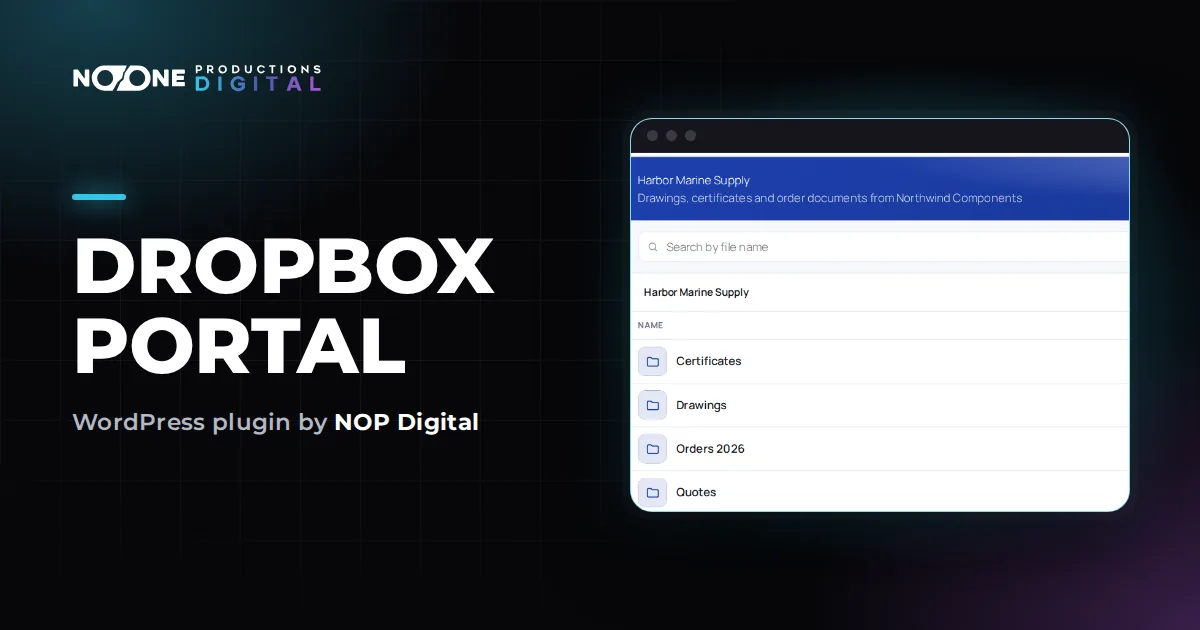
Many photographers and video makers already keep finished work in Dropbox. With Dropbox Portal, those Dropbox folders become the client area on your site, so there is no second upload.
- Keep one Dropbox folder per client, for example
/Clients/Rossi, with a subfolder per job inside it. - Connect Dropbox to WordPress. Install the plugin, then follow the numbered steps in Dropbox Documents > Dropbox connection. The plugin only asks for read permissions, so it can never change or delete your files.
- Create the client's account. Give each client their own WordPress role (a role manager plugin creates it in a minute; base it on Subscriber) and a user account with that role.
- Link the role to the folder. In Dropbox Documents > Folders and access, click + Add rule, pick the role, click Browse to choose the client's folder, and click Save rules. Details are in Give roles access to folders.
- Publish one client area page with the shortcode
[nopd_dropbox_portal]. Every client uses the same page and sees only their own folder. - Send the client their login once. From then on, every new job you save into their Dropbox folder appears in the portal within a few minutes.
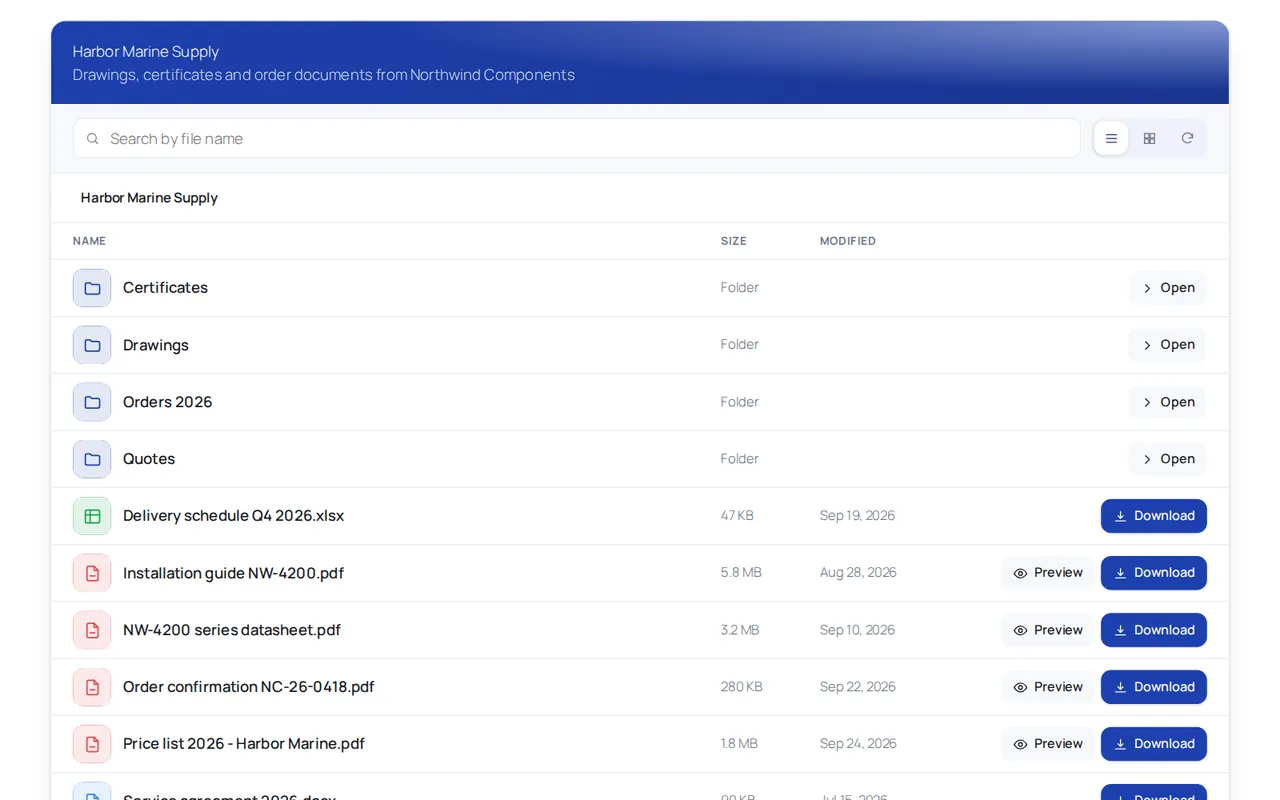
Downloads go from your Dropbox, through your site, to the logged-in client. No Dropbox share link is ever created, and a copied download address does not work for anyone who is not logged in with the right role. Clients cannot upload or delete anything, because the portal only reads Dropbox.
Features that matter for photo and video delivery
- Grid view and thumbnails (Pro): with the Previews and thumbnails option on, images show a small thumbnail, and the grid view suits photo sets better than a plain list.
- Preview (Pro): JPEG, PNG, GIF, WebP, BMP, TIFF and PDF files open in a preview window before download. Videos are not previewed in the portal: clients download them.
- View-only folders (Pro): switch off downloads for one rule, for example while a client chooses their favourites. Images are then shown only as reduced versions. It makes copying harder, but anything on a screen can still be photographed.
- Your colours (Pro): a portal colour that matches your brand, plus dark and auto themes.
The free version runs one rule, so one folder for one group of users. A folder for each client needs Pro, which you can try for 7 days from inside the plugin without a card.
Large video files: what to check first
Video is where delivery from your own site needs some thought. Because each file passes through your web server on its way to the client, it uses your hosting bandwidth. Check what your hosting plan allows before you put a 4 GB master file in the portal.
The plugin sends files in small pieces, so memory is not the issue, but it has a Maximum download size setting that blocks larger files with a message. It is 512 MB by default; you can raise it up to 5120 MB, or set 0 for no limit, in Dropbox Documents > Settings. See Add files and download them for how downloads and the cache work.
Comparing the delivery methods
| Method | Under your brand | Clients can come back later | Best for |
|---|---|---|---|
| Email attachments | Partly | Only if they keep the email | A few small previews |
| Transfer service | Limited | No, links expire | One-off or very large deliveries |
| Shared cloud folder link | No | Yes, while the link lives | Quick sharing of non-sensitive files |
| Gallery platform | On the platform | Depends on the service | Proofing and print sales |
| Private area on your site | Yes | Yes, as long as you keep the folder | Studios with repeat clients and files already in Dropbox |
Which delivery method fits your studio
If you deliver a few jobs a year, a transfer link is enough. If you sell prints and want proofing built in, a gallery platform is made for that. If you already keep every job in Dropbox and want clients to collect their photos and videos from your own website, with one login and no link to forward, a client area on your WordPress site is the tidiest option. The full setup, including the Dropbox connection, is in how to build a WordPress client portal with Dropbox.
Frequently asked questions
What is the best way to deliver photos to clients?
It depends on volume and brand. Transfer links suit occasional jobs, gallery platforms suit proofing and print sales, and a private area on your own website suits studios with repeat clients who want every delivery in one place.
How long should clients have access to their photos?
There is no fixed rule. Tell clients clearly how long files stay available and ask them to keep their own copy, whichever method you use.
Can I deliver large video files from my WordPress site?
Yes, but each download passes through your server and uses your hosting bandwidth. Check your hosting plan and raise the plugin's maximum download size, which is 512 MB by default.
Can clients choose favourites before downloading?
Dropbox Portal has no favourites or proofing tool. With Pro you can switch off downloads for a folder so clients only view reduced images while you agree the selection by email or phone; for built-in proofing, a gallery platform fits better.