To disable comments in WordPress completely, you have to close them in more than one place: the default for new content in Settings > Discussion, every post and page you have already published, your media items, and pingbacks and trackbacks. Then you decide what to do with the comments already on the site. You can do all of this by hand with core WordPress settings, or switch comments off everywhere at once with a plugin.
Where comments hide in WordPress
The most common complaint is "I turned comments off and I still get spam". That happens because WordPress stores the comment setting on each piece of content, not once for the whole site. Changing the main setting only affects what you publish from now on.
| Place | What controls it | Fixed by the main setting? |
|---|---|---|
| New posts | Settings > Discussion | Yes |
| Posts already published | Each post's own setting | No |
| Pages | Each page's own setting (new pages start closed) | No, for older pages |
| Media items (images, PDFs) | Each item's own setting, copied from the default when uploaded | No |
| Pingbacks and trackbacks | A separate setting, per post | Only for new posts |
| Comments already approved | Nothing: they stay visible | No |
| Comments menu and admin bar bubble | WordPress itself | No, they stay |
Pingbacks and trackbacks are automatic notices another blog sends when it links to you. They appear in the comments section, are rarely useful on a business site and often carry spam, so close them together with comments.
How to disable comments in WordPress without a plugin
This route uses only screens every WordPress site has. Steps 1 to 3 are quick; step 4 is the slow one if you have many media items.
Step 1: change the default for new content
- Go to Settings > Discussion.
- Under Default post settings, untick Attempt to notify any blogs linked to from the post, Allow link notifications from other blogs (pingbacks and trackbacks) on new posts and Allow people to submit comments on new posts.
- Click Save Changes at the bottom.
The screen itself warns you: Individual posts may override these settings. Changes here will only be applied to new posts. The WordPress guide to the Discussion screen explains the remaining options if you want to keep comments on but tighten them instead.
Step 2: close comments on existing posts and pages
- Go to Posts > All Posts. If your posts run over several pages, open Screen Options at the top right and raise Number of items per page so they fit on one screen.
- Tick the checkbox in the title row to select every post.
- In the Bulk actions menu choose Edit and click Apply.
- Set Comments to Do not allow and Pings to Do not allow, then click Update.
- Repeat in Pages > All Pages and in any other content type that shows a comments column.
For a single post, Quick Edit on the posts list has Allow Comments and Allow Pings checkboxes.
Step 3: optional safety net for posts
Back in Settings > Discussion, tick Automatically close comments on old posts and set Close comments when post is how many days old to 1. WordPress then treats comments and pings as closed on every post older than a day, including posts you publish later and forget to close. It applies to posts only, not to pages or media, and a value of 0 does nothing.
Step 4: close comments on media items
Every file in the media library is its own item with its own comment setting, taken from the default at upload time. On sites installed before WordPress 6.4, each item can also have its own attachment page, which may show a comment form. Since WordPress 6.4, new installations have attachment pages switched off, but older sites keep them.
WordPress has no bulk edit for this in the media library. For each item: open Media > Library in list view, click Edit under the file, show the Discussion box from Screen Options if you do not see it, untick Allow comments and click Update. On a site with hundreds of images, this is where a plugin saves real time.
Step 5: decide what to do with existing comments
Closing comments stops new ones, but approved comments stay visible under your posts. If you want them gone, go to Comments, select them, and choose Move to Trash from Bulk actions. If you might want them later, take a backup first. Keep in mind that the Comments menu and the comment bubble in the admin bar stay in place: core WordPress has no setting to remove them.
Disable comments everywhere with one switch
A plugin can close comments across the whole site at once, so you skip the post-by-post and file-by-file work of steps 2 to 4. There are dedicated disable-comments plugins, and some offer to delete existing comments too; read what each option does before you click, because deleting cannot be undone.
WP Plus+ does it with its Switch off comments module, one of 28 modules you switch on individually. The steps from the Switch on your first modules guide:
- Go to WP Plus+ > Modules and type comments in the search box.
- On the Switch off comments card, click Off. It changes to On. The module has no options, so there is nothing else to set.
As described in the Switch off modules guide, the module closes comments and pingbacks everywhere and hides existing comments on the site. The Comments menu, the Settings > Discussion page and the comments bubble in the admin bar disappear. Nothing is deleted: existing comments stay in the database and come back if you switch the module off.
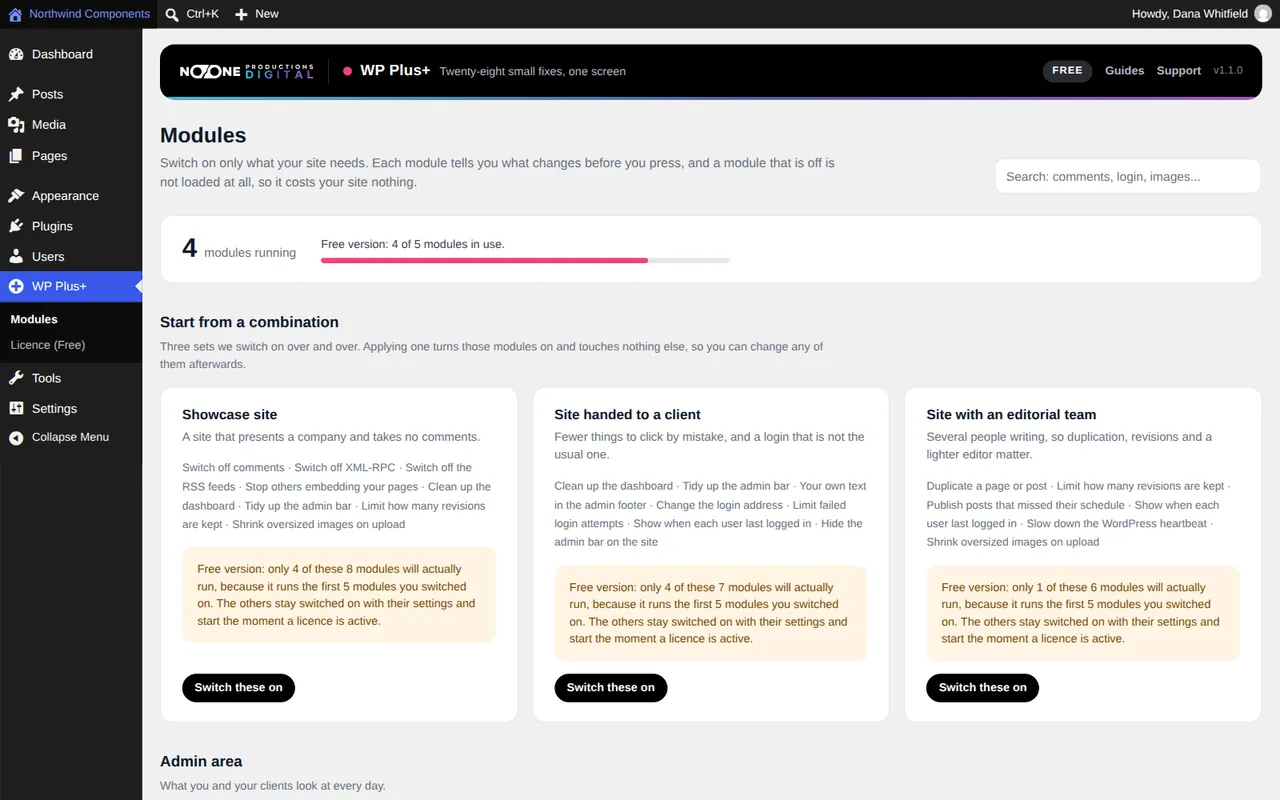
If your site is a company showcase that never takes comments, the Showcase site combination switches on Switch off comments together with related modules such as Switch off XML-RPC and Switch off the RSS feeds. On the free version only the first five modules you switch on actually run, and the combination card tells you how many before you click.
| Method | New and old posts | Media | Pingbacks | Existing comments | Admin menu |
|---|---|---|---|---|---|
| Core settings by hand | Yes, with bulk edit | One item at a time | Yes | Visible until you trash them | Stays |
| WP Plus+ Switch off comments | Yes | Yes | Yes | Hidden, not deleted | Removed |
Check that comments are really off
Do not trust the settings screen alone. Log out, or open a private (incognito) window, and look at the site as a visitor would.
- Open a recent post and an old one: there should be no comment form.
- Open a page that used to have comments.
- If your site is older and has attachment pages, open one from an image link.
- Over the next few days, check that the spam queue in Comments stops growing (if you used the core route, where the menu is still there).
Which option fits your site
Disabling comments in WordPress is not hard, but it is easy to do halfway. The main setting covers only new posts; existing posts, pages, media and pingbacks each need closing too.
- A small site with a few dozen posts and little media: the core route works well and costs nothing. Do steps 1 to 3 and check in a private window.
- A site with many images, or one you hand to a client: a plugin that switches comments off everywhere is faster and covers every media item. WP Plus+ also removes the comment menus, which keeps the admin tidy for the client.
- You may want comments back one day: choose a method that hides rather than deletes, or back up before trashing.
While you are tidying up the parts of WordPress you do not use, it is worth moving the login page away from its default address too.
Frequently asked questions
Why do I still get spam comments after turning comments off?
The setting in Settings > Discussion only applies to new posts. Posts, pages and media items published before keep their own setting, so close them with bulk edit or use a plugin that closes comments everywhere.
Does disabling comments delete existing comments?
No. Closing comments in WordPress stops new ones and leaves approved comments visible. A plugin may hide them instead; WP Plus+ hides them and keeps them in the database, so they come back if you switch the module off.
How do I disable comments on a single page or post?
In the posts or pages list, hover over the title, click Quick Edit, untick Allow Comments and Allow Pings, and click Update.
Should a business website disable comments?
If nobody on your team answers comments, closing them removes a steady source of spam and moderation work. Keep them only if conversation under your articles is part of how you talk to customers.