WordPress maintenance mode shows visitors a temporary holding page while you work on the site, and it should answer with the HTTP status code 503 so that Google knows to come back later instead of indexing the holding page. WordPress switches it on by itself for a moment during updates; to use it when you choose, you either create a small file by hand or switch it on with a plugin. It is right for work that takes hours; for a site that stays closed for weeks, a "coming soon" page is the better tool.
What WordPress maintenance mode is, and the one already built in
You have probably seen the built-in version: Briefly unavailable for scheduled maintenance. Check back in a minute. WordPress shows it while it updates itself, a plugin or a theme. During the update it creates a file called .maintenance in the site's main folder, and while that file exists every request gets the message.
According to the WordPress code reference, that page is sent with the 503 status and a Retry-After: 600 header, which asks visitors and crawlers to come back in ten minutes. WordPress also ignores a .maintenance file that is more than ten minutes old.
This built-in mode blocks everyone, you included, and it runs before WordPress even checks who is logged in. That is fine for an automatic update, but not for a morning spent changing your pages.
Maintenance page or coming soon page?
The two look alike, a page saying "we will be back", but they tell search engines opposite things.
| Maintenance page | Coming soon page | |
|---|---|---|
| When | An existing site is closed for a short job: a redesign, a migration, a big update | A new site is not launched yet, or a site is closed for a long time |
| How long | Hours, at most a day or two | Days to months |
| Status code | 503 Service Unavailable | 200 OK |
| What Google does | Keeps your pages as they were and comes back later | Indexes the placeholder like any page |
Google's own guidance on pausing a site matches this: if you need to disable a site for one or two days, return an informational page with a 503 and a Retry-After header; for longer, publish an indexable placeholder home page with the 200 status. For an online shop, Google's recommended option is not closing at all but limiting the site, for example switching off the cart and showing a banner that explains the situation.
WordPress maintenance mode and SEO: why the 503 matters
The status code is the part of maintenance mode that search engines read. If your holding page answers 200 OK, a crawler that visits during your work sees a normal page whose content is now "back soon". That is the text it may record for your home page.
A 503 says the opposite: the server is temporarily unavailable, try again later. Google's documentation on server errors explains that Google slows its crawling when it gets 5xx answers and keeps pages already in the index, but drops them eventually if the errors continue. So a 503 protects you for a short window, not indefinitely.
Three practical rules follow:
- Keep maintenance windows short, and plan the work so the site is closed for hours, not days.
- Check the status your maintenance page really sends. In Chrome or Firefox, open the site in a private window, right-click and choose Inspect, open the Network tab and reload: the first line should show 503.
- Look at
yoursite.com/robots.txttoo. Google asks that robots.txt is not answered with a 503, because that blocks all crawling. A real robots.txt file in the site's main folder is served directly by the server and is not affected by WordPress maintenance pages.
How to put WordPress in maintenance mode without a plugin
You can reuse the built-in mechanism by creating the .maintenance file yourself.
- Connect with FTP or your hosting file manager and open the site's main folder (the one containing
wp-config.php). - Create a file named
.maintenance, with the dot at the start and no extension. - Put this single line in it:
<?php $upgrading = time(); ?> - Open the site in a private window: you should see the maintenance message.
- When you have finished, delete the file.
Because the file sets the time to "now" on every visit, the ten-minute expiry never arrives, and the site stays in maintenance mode until you delete the file. The page is sent with the 503 status.
The limits are serious. Everyone is blocked, including you and the WordPress admin, so this method only suits work you do outside WordPress, such as moving the database or server changes. The message is the generic English one. You can replace it with a file called maintenance.php in the wp-content folder, but WordPress loads that file before sending its own 503, so your file has to send the status itself: start it with <?php http_response_code( 503 ); header( 'Retry-After: 3600' ); ?>. If that is more code than you are comfortable with, use a plugin.
A different way to avoid maintenance mode altogether: many hosting plans include a staging copy of the site, where you make changes in private and publish them when they are ready.
How to put WordPress in maintenance mode with a plugin
The main reason to use a plugin: it can let you, logged in, keep seeing and editing the real site while visitors see the holding page.
Dedicated maintenance and coming soon plugins offer designed pages, countdowns and email sign-up forms. They are a good fit for a launch page. Some offer both a maintenance and a coming soon mode; check which status code each mode sends before relying on it, with the Network tab test above.
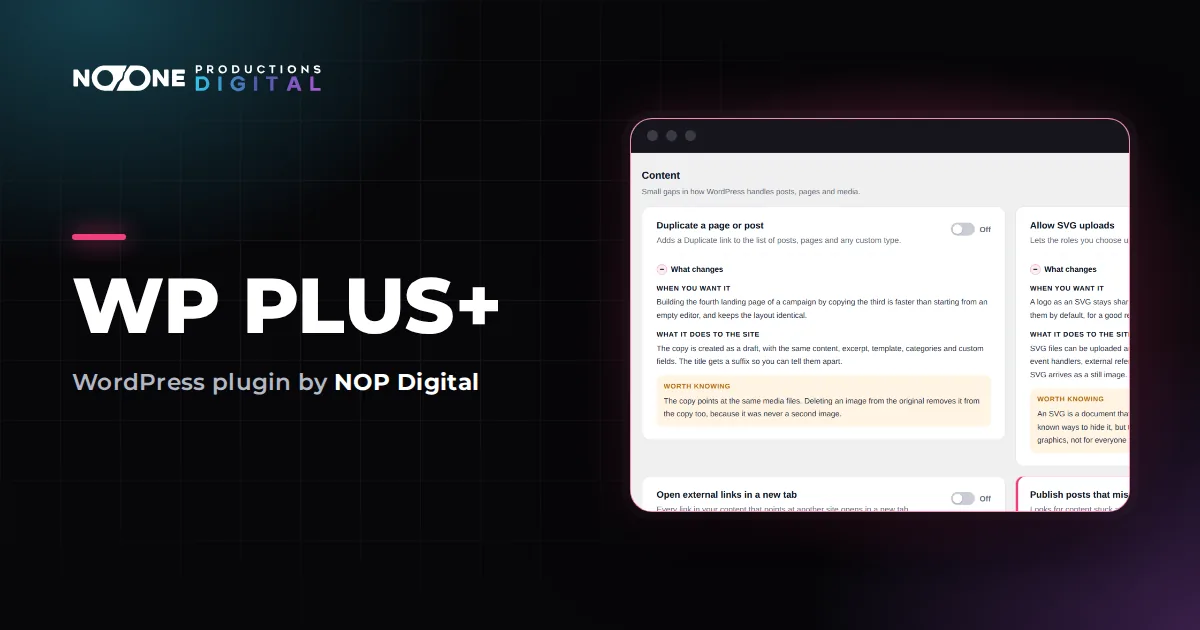
WP Plus+ has a simpler Maintenance mode module, useful when you want the holding page for an afternoon and nothing to design. It sends the 503 status code, shows the real site to anyone logged in, and keeps the login page reachable. The steps from the Tools modules guide:
- In the admin, go to WP Plus+ > Modules and type maintenance in the search box.
- On the Maintenance mode card, click Off to switch it on.
- Change Title and Message if you like (the defaults are Back shortly and We are doing a little maintenance on the site. It will be back in a few minutes.). Saying roughly when you will be back helps. Click Save.
- Open the site in a private (incognito) window to see what visitors see. In your normal window you are logged in, so you see the real site.
- When you have finished, click On on the card to switch maintenance mode off.
The default title and message follow the language of the site until you write your own. Two limits to know: the page has a title and a message, not a design builder, and it covers the site's pages only. Files served directly by the server, such as an image in the uploads folder, stay reachable at their own address.
One thing to plan for: the WP Plus+ free version runs only the first five modules you switched on. If five are already running, maintenance mode would be the sixth and would wait, with a message on its card, so switch off a module you need less for the afternoon, or start the 7-day trial. The Switch on your first modules guide explains how the free limit works.
A short checklist for your maintenance window
- Take a backup before you start.
- Write a message with a realistic return time, and a contact (email or phone) for anything urgent.
- Switch maintenance mode on and check it in a private window, including the 503 status.
- Do the work. Keep it to hours.
- Switch maintenance mode off and clear your cache (caching plugin or host).
- Test the things that earn money: contact forms, the shop's cart and checkout, booking forms.
Which option fits you
WordPress maintenance mode is a short-term tool: a holding page with a 503 while you work for a few hours. For anything longer, or a site not launched yet, use a coming soon page that answers 200, or keep the site open and limit what it does.
- Server work, nobody needs the admin: the hand-made
.maintenancefile is enough. - A redesign or content work in the admin: a plugin that lets logged-in users see the real site. WP Plus+ does it with one switch, next to fixes such as switching off comments and a private login address.
- A launch page with design and sign-up form: a dedicated coming soon plugin.
Frequently asked questions
How long can a WordPress site stay in maintenance mode without hurting SEO?
Google's guidance is one to two days with a 503 status. For longer closures, publish a placeholder home page that answers 200, or keep the site open with limited features.
Why is my WordPress site stuck in maintenance mode after an update?
An interrupted update left the .maintenance file in the site's main folder. Delete it with FTP or your hosting file manager, then check that the update completed.
Can I see my site while it is in maintenance mode?
With the built-in .maintenance file, no: everyone is blocked, administrators included. A plugin can do it: WP Plus+, for example, shows the real site to anyone who is logged in.
Should an online shop use maintenance mode?
Only for short work. For longer pauses Google recommends keeping the shop online and limiting it, for example switching off the cart and adding a banner that explains when orders reopen.