To change the WordPress login URL, you move the login page away from /wp-login.php to an address only you and your team know. WordPress has no setting for this, so you do it with a plugin (or a module inside one), and it takes about five minutes. It stops the automated bots that keep trying passwords on the default address, but it is not a complete security measure, and you must test the new address before you log out.
Where the WordPress login page is by default
Every WordPress site has its login page at the same place: yoursite.com/wp-login.php. If you are not logged in, yoursite.com/wp-admin sends you there too, and on most sites short addresses such as yoursite.com/login and yoursite.com/admin are redirected to it as well.
That predictability is the problem. Password-guessing bots do not need to find your login page: they already know where it is on every WordPress site, so they send login attempts to /wp-login.php on site after site. Moving the page means those requests hit an address that no longer leads anywhere.
What changing the WordPress login URL protects against, and what it does not
Be clear about what you are buying. The official WordPress hardening documentation puts it plainly: obscuring the login URL can reduce noise but should not be your only defence. Here is what that means in practice.
| Threat | Does a new login URL help? |
|---|---|
Bots guessing passwords on /wp-login.php | Yes. They find nothing at the old address. |
Password guessing through xmlrpc.php | No. XML-RPC is a separate door that accepts logins; it has to be closed on its own. |
| Weak or reused passwords | Only a little. Anyone who learns the new address can still try them. |
| Someone who already knows the address (a former contractor, a forwarded email) | No. |
| An outdated plugin or theme with a security hole | No. Those attacks usually do not go through the login page at all. |
So treat a private login address as a way to cut the background noise of automated attempts. The protections that actually stop a determined attacker are strong passwords, two-factor authentication and up-to-date software, covered further down.
Four ways to change the WordPress login URL
1. Rename or edit wp-login.php (avoid this)
Some older tutorials suggest renaming wp-login.php or copying it under a new name. Do not. WordPress updates replace the core files, so your change does not survive, and WordPress keeps writing links to wp-login.php in places such as the password reset email and the log out link, which then break.
2. Use the option in a security plugin
Many all-in-one security plugins include a "hide login" or "custom login URL" setting next to their firewall, scanner and two-factor features. It is a sensible choice if you already run one. The downside is weight: you install a large plugin with dozens of settings to change one address.
3. Use a small plugin or module that only does this
Single-purpose login plugins exist on WordPress.org, and multi-tool plugins such as WP Plus+ include it as one module you switch on by itself. This is usually the easiest route for a small business site: one field, one address, nothing else to learn.
4. Restrict the login page on the server
If your office has a fixed internet address, your host can allow /wp-login.php only from that address, or put an extra password prompt in front of it. The WordPress documentation linked above shows server examples. It is stronger than hiding the page, but it needs your host's help and gets awkward when people log in from home or on the road.
Whichever route you pick, use only one tool to move the login page. Two plugins that both rewrite the login address can get in each other's way, and that is an easy way to lock yourself out.
Step by step: change the login address with WP Plus+
These steps follow the Log in and users modules guide. If the plugin is not installed yet, see Install the free version first: installing it changes nothing until you switch a module on.
- Choose the new address and write it down somewhere safe, for example in your password manager next to your WordPress password.
- In the WordPress admin, go to WP Plus+ > Modules and type login in the search box.
- On the Change the login address card, click the Off button. It changes to On and the options appear under the card.
- In New address, type only the last part:
officebecomesyoursite.com/office. Use letters, numbers and dashes. Words such asadmin,wp-adminandwp-loginare not accepted. - In Someone opens the old address, choose Show a 404, as if nothing was there (the default) or Send them to the home page. Click Save.
- Before logging out, open a private (incognito) browser window, go to
yoursite.com/your-new-addressand check that you can log in there. - Only then log out of your normal window.
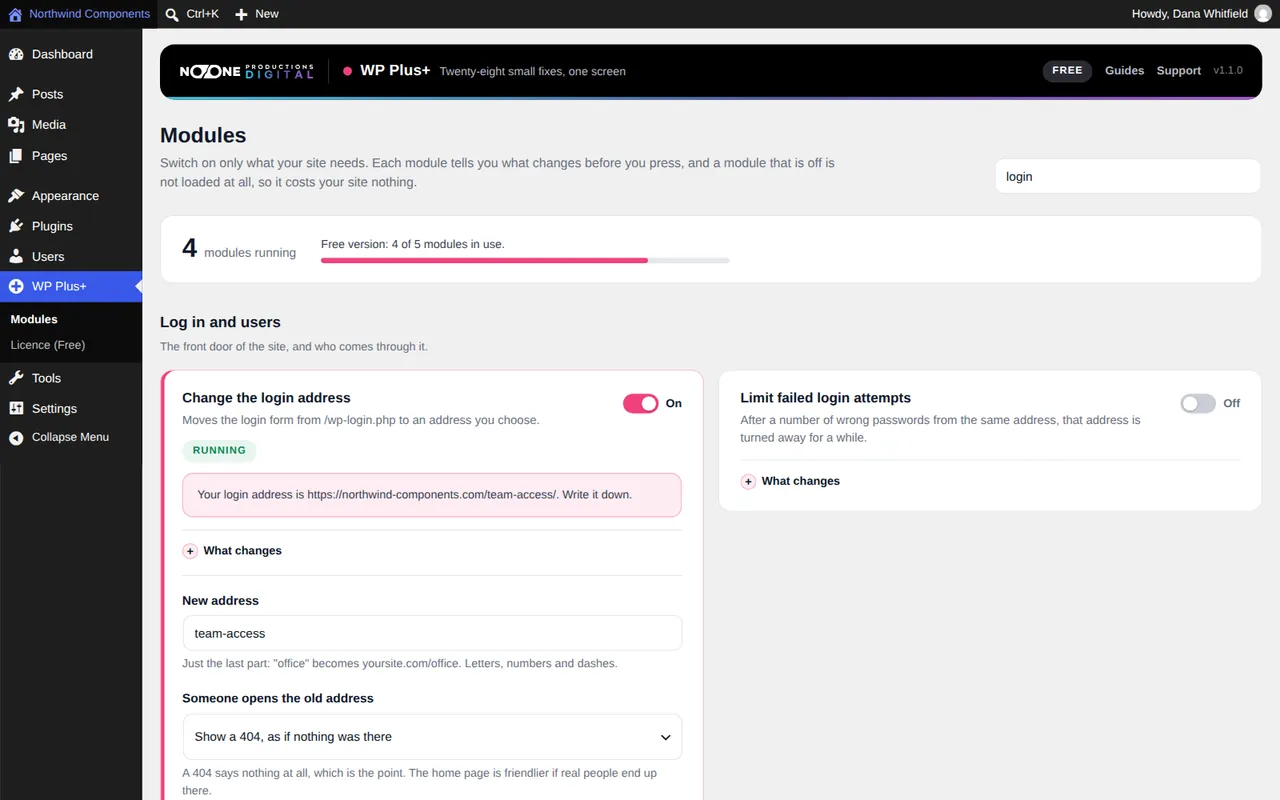
The new address serves the whole login page: logging in, logging out, Lost your password?, the reset link in the email and the login window WordPress opens when a session expires. Every link WordPress writes, including those in emails, uses the new address, and password-protected pages keep working for visitors. While the New address field is empty, the module does nothing, so you cannot switch it on half configured.
The free version of WP Plus+ runs up to five modules at the same time, and this is one of them. A licence or the 7-day trial removes the limit.
How not to lock yourself out, and how to get back in
Lockouts usually happen for ordinary reasons: a forgotten address, a colleague using an old bookmark. A few habits prevent them.
- Tell everyone who logs in. Editors, the client, a shop manager: anyone with an account needs the new address. Their old bookmarks to
wp-adminwill stop working. - Save it with the password. Most password managers store the address with the login, so the right page opens every time.
- Look it up while you still can. As long as you are logged in somewhere, the module's card shows Your login address is ... with the full address.
If you do get locked out, you do not need a developer. Connect to the site with FTP or your hosting file manager, open wp-content/plugins/ and rename the wp-plus folder, for example to wp-plus-off. WordPress switches the plugin off and /wp-login.php works again. Log in, rename the folder back, reactivate the plugin under Plugins, and read or clear the address on the module's card. The WP Plus+ common questions page describes the same steps.
What to add next: the protections that matter more
A private login address is a good first step, not the last one. If you only do three more things, make them these:
- Long, unique passwords for every administrator, kept in a password manager.
- Two-factor authentication for administrators, with a dedicated plugin. WordPress recommends it for all privileged users.
- Updates for WordPress, plugins and themes, and removal of plugins you no longer use.
WP Plus+ has three more modules that close related doors, all described in the Switch off modules and login guides. Limit failed login attempts locks out an internet address after a number of wrong passwords (5 attempts and 20 minutes by default); in an office where everyone shares one connection, do not set it too low. Switch off XML-RPC closes the other login door, but leave it off if someone publishes with the WordPress mobile app. Close the REST API to strangers stops visitors who are not logged in from reading your list of users; test your contact forms and checkout afterwards.
To be honest about limits: WP Plus+ is not a security plugin. It makes the site harder to bother, but it does not scan for malware or filter traffic. If you need that, keep your security plugin and use one of the two for the login address.
Which option fits your site
Changing the WordPress login URL is quick, cheap and worth doing on almost any business site, as long as you see it as noise reduction rather than protection. Never edit wp-login.php itself.
- You already run a full security plugin: use its custom login setting and keep everything in one place.
- You want a light site and a few other fixes too (comments off, a tidier admin, a maintenance page): a module-based plugin such as WP Plus+ does it without extra plugins. The same panel can also switch off comments everywhere.
- Everyone logs in from one office: ask your host to restrict the login page by internet address.
Whatever you choose, write the address down, test it in a private window before logging out, and add two-factor authentication for administrators.
Frequently asked questions
What is the default WordPress login URL?
It is yoursite.com/wp-login.php. If you are not logged in, yoursite.com/wp-admin redirects there, and on most sites so does yoursite.com/login.
Does changing the WordPress login URL stop hackers?
It stops automated bots that try passwords on the default address, which cuts a lot of noise. It does not stop logins through XML-RPC, attacks on outdated plugins or anyone who learns the new address, so use strong passwords and two-factor authentication as well.
Can I change the WordPress login URL without a plugin?
Not safely. WordPress has no setting for it, and renaming wp-login.php breaks links and is undone by updates. Without a plugin, the alternative is asking your host to restrict the login page to your office's internet address.
What happens to people who open the old login address?
That depends on the tool. In WP Plus+ you choose: they see a 404 page, as if nothing was there, or they are sent to the home page.