You can build a WordPress product catalogue without WooCommerce in four ways: with ordinary pages and posts, with a custom post type and custom fields, with a dedicated catalogue plugin, or by installing WooCommerce and hiding the shop parts. If your buyers choose by specifications and then call or write to you, a catalogue plugin with filters is usually the quickest route. If you plan to take payments online soon, WooCommerce may still be the better base.
This guide helps you decide whether you need a catalogue or a shop, compares the four options honestly, and walks through a working setup step by step.
Do you need a catalogue or a shop?
A shop takes orders and money. A catalogue helps people find the right product and then get in touch. Many manufacturers, distributors and B2B suppliers only need the second, but end up installing a shop because it is the first thing everyone suggests.
You probably need a catalogue, not a shop, if:
- prices depend on the customer, the quantity or the configuration, so you quote them;
- you sell through dealers, agents or a showroom, not directly online;
- your buyers ask about sizes, capacities and options before they ask about price;
- you have no online stock, shipping rates or tax rules to manage.
WooCommerce is a complete shop: cart, checkout, payments, taxes, shipping and order emails. All of that has to be configured, updated and kept out of sight if you never use it. That is the real cost of using it as a brochure.
What a useful product catalogue needs
Before comparing tools, list what your visitors need to do. For a technical range, a good catalogue usually covers these points:
- Find by features: filters for the things buyers know (capacity, power, where it goes, field of use), not only a list of names.
- Find by code: a search box for the dealer who already knows the model number.
- Compare like with like: the same key specs on every product, so two models can be read side by side.
- Easy updates: a way to load or refresh the range from the spreadsheet you already keep, not 200 edits by hand.
- A page per product, if you want search traffic: an address that search engines can index for each model.
- A clear next step: phone, email or enquiry form next to the results, because there is no cart.
Keep this list next to you while you read the options below. Each one covers some points well and others badly.
Four ways to build a WordPress product catalogue without WooCommerce
1. Pages and posts, by hand
Create one post per product in a "Products" category, or one page with a table of models. It costs nothing and needs no plugin. It works for ten products. Beyond that, categories give you a single way to sort things, there is no filtering by specification, and every price list change means editing pages one by one.
2. A custom post type with custom fields
A developer creates a "product" content type with its own fields (power, capacity, dimensions) and taxonomies, then builds the list and detail templates in the theme. Tools such as Advanced Custom Fields make the fields easy to add, and the ACF team describes this approach in detail. For filtering you add a faceted search plugin on top. You get total control, but you pay for development time, and someone has to maintain the templates when the theme changes.
3. A dedicated catalogue plugin
The WordPress.org directory has several plugins built only for catalogues. They give you a product type, a list page and settings screens, with no shop underneath. They differ a lot in how they filter (by category only, or by numeric specs), whether they import spreadsheets and what the free version includes, so test two or three on a copy of your site with real products.
4. WooCommerce in "catalogue mode"
WooCommerce has no catalogue switch of its own. You hide prices and the Add to cart button with an extension or a code snippet, and leave the cart and checkout pages unused. It makes sense if you expect to sell online later, because the products will already be there. It is heavy if you never will.
| Option | Filters by specs | Setup | Upkeep | Fits |
|---|---|---|---|---|
| Pages and posts | No | Minutes | By hand, every change | A handful of products |
| Custom post type and fields | With a filter plugin | Developer time | Developer | Unusual needs, a budget for code |
| Catalogue plugin | Depends on the plugin | An afternoon | Plugin updates | Most B2B ranges |
| WooCommerce, cart hidden | With a filter plugin | A full shop to configure | A whole shop to update | Selling online is planned |
Build the catalogue step by step with a plugin
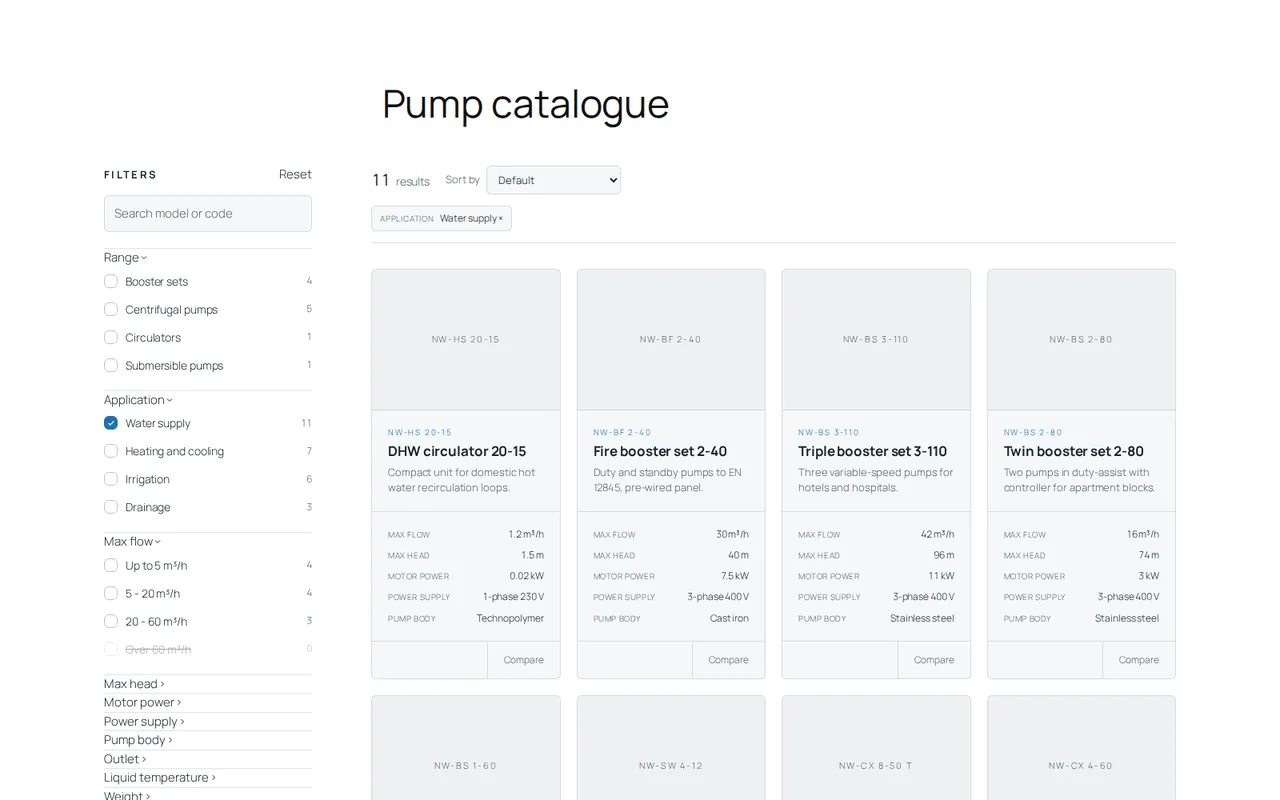
Here is how the third option works with Product Viewer, our catalogue plugin: filters on the left, matching products on the right, with a live count next to every filter entry. It needs no WooCommerce and no code. The steps follow the first catalogue guide.
- Install it. Download the zip, then in WordPress go to Plugins > Add New Plugin, click Upload Plugin, Choose File, Install Now and Activate Plugin. Do not unzip the file first.
- Look at the sample first (optional). In Product Viewer > Overview, click Or start from sample filters, then in Settings, under Tools, click Create sample products. When you have seen enough, Delete sample products removes them.
- Create the filters. In Product Viewer > Filters, type a Filter name in the New filter box, choose the Type (List of entries (checkboxes) or Number, grouped in ranges) and click Create filter. Then add the entries with New entry and Add entry. The filters guide explains number ranges.
- Add the products. In Product Viewer > New product, fill in Product name, Product code and Short description, pick a photo with Choose image, tick the entries of each filter and click Add product. With the full version you can load a spreadsheet from Import instead.
- Put it on a page. Add a Shortcode block to any page, paste
[product_viewer]and publish. It also works in Elementor and other builders, as the placement guide shows. - Decide about product pages. The product detail page is off by default, so the catalogue works as a filterable showcase. Turn on Product detail page in Settings if you want one indexable page per product, and choose the Detail page address word before you publish.
Free and full version
The free version shows up to 25 products and the first 3 filters, with live counts, search, shareable filtered links, the optional product page, accent colour and corner radius. The full version removes the limits and adds comparison of up to 3 products, grouping by family, CSV import and full styling (palette, text size and card width). It costs €29,90 once, for one site, VAT included: no subscription. The Try everything free for 7 days button on the Licence screen switches on the full version for 7 days, with no card.
Turn catalogue visits into enquiries
Without a cart, the catalogue has one job: bring the buyer to you already knowing which model they want. A few habits help.
- Put the contact route next to the results. The catalogue is an ordinary page, so add a short line above or below it with your phone number, email address or form.
- Ask for the product code. Codes are prominent on the cards, so "tell us the code" makes enquiries precise.
- Send filtered links. In Product Viewer the chosen filters are written in the page address. Your sales team can apply a selection, copy the address and email it instead of explaining where to look.
- Keep documents where dealers can reach them. Datasheets and manuals for partners can live in a private area; see how to build a Google Drive client portal.
Two companion guides go deeper: how to design product filters that match the way buyers think, and how to import products from Excel without broken accents or duplicates.
Which option fits you
- Fewer than a dozen products, rarely changed: pages and posts are enough.
- Unusual data or layouts, and a developer on hand: a custom post type with custom fields and a filter plugin.
- A range people choose by specs, and no online sales: a catalogue plugin. Product Viewer is one option, and its free version lets you test it with your real products.
- Online sales planned within the year: WooCommerce with the cart hidden for now.
Whichever you pick, start from the questions your buyers ask on the phone. The catalogue that answers them is the one that works.
Frequently asked questions
Can I add WooCommerce later if I start with a catalogue plugin?
Yes. A catalogue plugin does not stop you installing WooCommerce when you decide to sell online. Product Viewer, for example, can keep running alongside WooCommerce.
Can a product catalogue without WooCommerce rank on Google?
Yes, if each product has its own public page with real text. In Product Viewer that means turning on the product detail page in Settings and writing a full description for each product.
Can I show prices without a shopping cart?
Yes. A price is just information on the page; nothing forces you to take payments. Many B2B catalogues leave prices out and ask buyers to request a quote instead.
Do I need a developer to build a product catalogue in WordPress?
Not with a catalogue plugin: filters, products and the page are set up from admin screens. You need a developer if you build your own product type with custom fields and templates.