An AI chatbot for WordPress "trained on your documents" is usually not trained at all: it searches your documents for the paragraphs that match a visitor's question, sends only those paragraphs to an AI model, and asks it to answer from them. This is called retrieval. To set one up you need three things: documents with real text, a search index built from them, and a chat on your site that is told to answer only from what it finds.
This guide explains how that works in plain words, compares the ways to get it on a WordPress site, and walks through a setup you can follow in an afternoon.
How an AI chatbot trained on your documents really works
Real training (fine-tuning) changes the AI model itself. It is expensive, it needs a lot of examples, and when your returns policy changes you would have to train again. Almost no small business chatbot does this, even when the box says "trained on your data".
What these chatbots do instead is called retrieval augmented generation, or RAG. IBM Research describes it as retrieving facts from an outside knowledge base to ground the model on accurate, up-to-date information. In practice it runs in five steps:
- Split. Each document is cut into short passages, ideally at its headings, so each passage keeps its title.
- Index. Each passage is turned into a list of numbers that describes its meaning (an embedding). OpenAI's guide on embeddings explains that the distance between two of these lists shows how related the two texts are.
- Search. When a visitor asks "can I send it back?", the question is turned into numbers the same way and compared with every passage. Your returns page wins, even though it never uses the words "send it back".
- Answer. The best few passages go to the AI model together with the question and an instruction such as "answer only from these extracts".
- Show sources. A good chatbot says which document each answer came from, so you and the visitor can check it.
Two consequences matter for you. First, updating the chatbot means updating a document, not retraining anything. Second, most wrong answers come from the search step (the right paragraph was not found or does not exist), so the fix is usually a clearer document.
Do you need a vector database?
The lists of numbers have to be stored somewhere. Many tools use a separate vector database service, and OpenAI's guide recommends one for searching over many vectors quickly. For a business site with a few hundred pages of policies, manuals and price lists, the passages can also live in the ordinary WordPress database. It is simpler and there is no second account to pay for, but it has a ceiling: on very large archives (many thousands of passages) a search inside WordPress gets slow, and a dedicated service becomes the better fit.
Your options on WordPress
There are four realistic ways to get a document-based chatbot on a WordPress site. None is right for everyone.
| Option | How it works | Good for | Watch out for |
|---|---|---|---|
| Hosted chatbot service | You upload documents to an outside platform and paste its widget code into your site. | Teams that want someone else to run everything. | Your documents and chats live on their servers; usually a monthly subscription. |
| General AI plugin with a vector database | A WordPress plugin with many AI features, connected to your AI key and often to a separate vector database. | Sites that also want AI for writing, images or forms. | More settings to understand, and sometimes a second service to set up. |
| Build it yourself | A developer connects an AI API, a vector store and a chat front end. | Unusual needs, very large archives. | Cost of development and upkeep; you own every bug. |
| A dedicated plugin such as Answer Desk | Documents, index and conversations stay in your WordPress database; you connect your own AI provider key. | Shops, studios and firms that answer the same questions every day. | You manage the AI key and bill yourself; not designed for huge archives. |
Whichever you choose, check three things before you commit: can it be told to answer only from your documents, does it show its sources, and what does it say when it does not know?
Prepare documents the chatbot can use
The quality of the answers depends more on your documents than on the AI model. An afternoon spent here saves weeks of odd answers.
- Use real text. A scanned PDF is a picture of a page with no letters inside, so there is nothing to search. Run scans through OCR (text recognition) first, or copy the text into a plain file.
- Use real headings. Chatbots split text at headings, so a heading like "Returns for items ordered by mistake" becomes a label the search can match.
- One subject per document. A one-page returns policy beats a hundred-page manual where returns appear on page 64.
- Turn your FAQ into a table. A CSV file with a question column and an answer column is one of the easiest formats for retrieval.
- Write down what is only in your head. If your team answers "do you deliver on Saturdays?" from memory, the chatbot cannot. Put it in a document.
- Remove what should not be public. Anything the chatbot can read, a visitor can get it to repeat. Keep internal prices, staff notes and personal data out.
Set up an AI chatbot on WordPress trained on your documents
Here is the whole setup with Answer Desk, a WordPress plugin that works this way. The free version answers from 5 documents and includes every AI provider; the steps are the same in Pro. Nothing appears on your site until you switch it on, so you can test in peace.
1. Install and connect an AI provider
Upload the plugin zip in Plugins > Add New Plugin > Upload Plugin and click Activate Plugin. Then open Answer Desk > AI provider:
- In the Who answers card, click the provider you chose (ChatGPT, Claude, Gemini, Mistral or OpenRouter) and click Save changes.
- In the API keys card, paste the key from your provider's account in the row of that provider and click Save changes.
You pay the provider directly for what you use. Claude and OpenRouter cannot build the search index, so with them you also save a key from a second provider (for example Voyage AI) and select it in the Who builds the index card. The guide Connect an AI provider explains what an API key is and where to get one. If you have not picked a provider yet, see how to choose an AI model for a website chatbot.
2. Add your documents and pages
Go to Answer Desk > Knowledge.
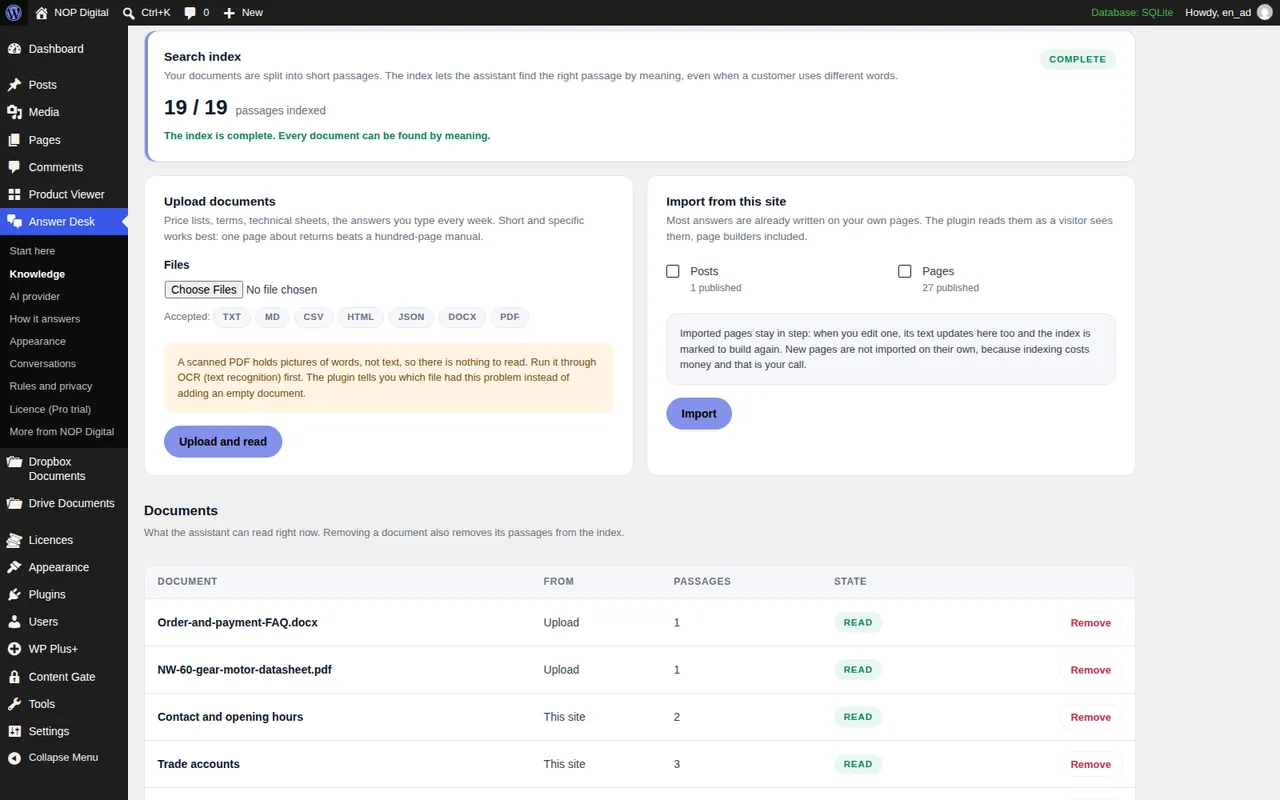
- In Upload documents, choose your files (.txt, .md, .csv, .html, .json, .docx, or .pdf with real text) and click Upload and read.
- In Import from this site, tick the kinds of content you want (for example Pages or Products) and click Import. Pages are read as a visitor sees them, so text from page builders is included.
In the free version, the first 5 documents are used in answers; extra ones are kept and indexed, and start working when a licence is active. Details in Add documents and site pages.
3. Build the index
At the top of Knowledge, the Search index card shows how many passages are left and an estimated cost. Click Build the index. It is usually a few cents for a whole site, paid to your provider. The index is stored in your WordPress database. Build it again whenever you add documents or edit imported pages; the plugin reminds you. See Build the index.
4. Keep it to your documents
On Answer Desk > How it answers, leave Answer only from my documents and Show which document each answer came from on. Then fill in What it says when it does not know with a real email address, phone number or contact page. This is the field that turns "I don't know" into a useful answer.
5. Test, then switch it on
On Answer Desk > Start here, the Try it card lets you type a question and click Ask. You see the answer and the extracts it used, each with a percentage showing how close it was. Ask the awkward questions your customers really ask. When you are happy, click Switch on and a chat button appears in the bottom corner of your site.
After launch: read what people ask
The first weeks tell you more than any setting. On Answer Desk > Conversations you can read every question and the answer it got, with the documents each answer used. Every question the chatbot could not answer is a document you have not written yet: write it, rebuild the index, and that question is covered from then on.
Two more things belong in your first week. Set a daily ceiling on answers (Most answers in a day on Rules and privacy) so a busy day cannot surprise you on the AI bill. And check the privacy side: in the EU the chat must tell visitors they are talking to an AI, and conversations are personal data. Our guide on AI chatbots, GDPR and the AI Act covers what that means for a small business.
The free version keeps the last 100 conversations for up to 30 days. Pro, from €49,90 / year for 1 site (VAT included), uses every document, keeps conversations as long as you choose and exports them as CSV.
Which option fits whom
A chatbot trained on your documents is really a search over your documents plus an AI that writes the answer. Get the documents right and most tools will do a decent job.
- You want nothing to run yourself: a hosted service, if you accept that documents and chats live on its servers and the monthly fee.
- You want AI for many jobs on the site: a general AI plugin, if you have time to learn its settings.
- You have a very large archive or unusual needs: a custom build with a vector database.
- You want a support chat that answers only from your documents, keeps data in WordPress and uses your own AI key: a dedicated plugin such as Answer Desk. Start with the free version and your five most-asked-about documents.
Frequently asked questions
Is an AI chatbot really trained on my documents?
Usually not. Most business chatbots search your documents for the relevant paragraphs and send them to the AI with each question, which is called retrieval. The model itself does not change, so updating a document updates the answers.
Can a WordPress chatbot read PDF files?
Yes, when the PDF contains real text. A scanned PDF is only an image of the page, so it needs OCR (text recognition) first, or you can copy its text into a plain text file.
What happens when the answer is not in my documents?
A well set up chatbot says it cannot find the answer and gives a way to reach a person, such as an email address or contact page. If it is allowed to answer from general knowledge instead, it may say things your company never said.
How much does a document-based chatbot cost to run?
With your own AI key you pay the provider per question, plus a one-off cost to build the index. Hosted services usually charge a monthly fee instead. Set a daily limit on answers so costs stay predictable.